Backends
Connect the model servers convo writes and judges with, check they answer, and compare model prices before you pick one.
A backend is a model server convo calls: Ollama on this machine, Ollama Cloud, or any server that speaks the OpenAI chat API, such as vLLM, llama.cpp or LM Studio. Convo ships with two built-in backends, "Ollama Cloud" and "Ollama local". Backends is under Settings in the sidebar. Anyone can list and test backends; adding or changing one needs an admin.
Add an Ollama server on another machine
You have a GPU box on your network running Ollama, and you want convo to generate on it for free instead of paying for cloud tokens.
- Step 1.
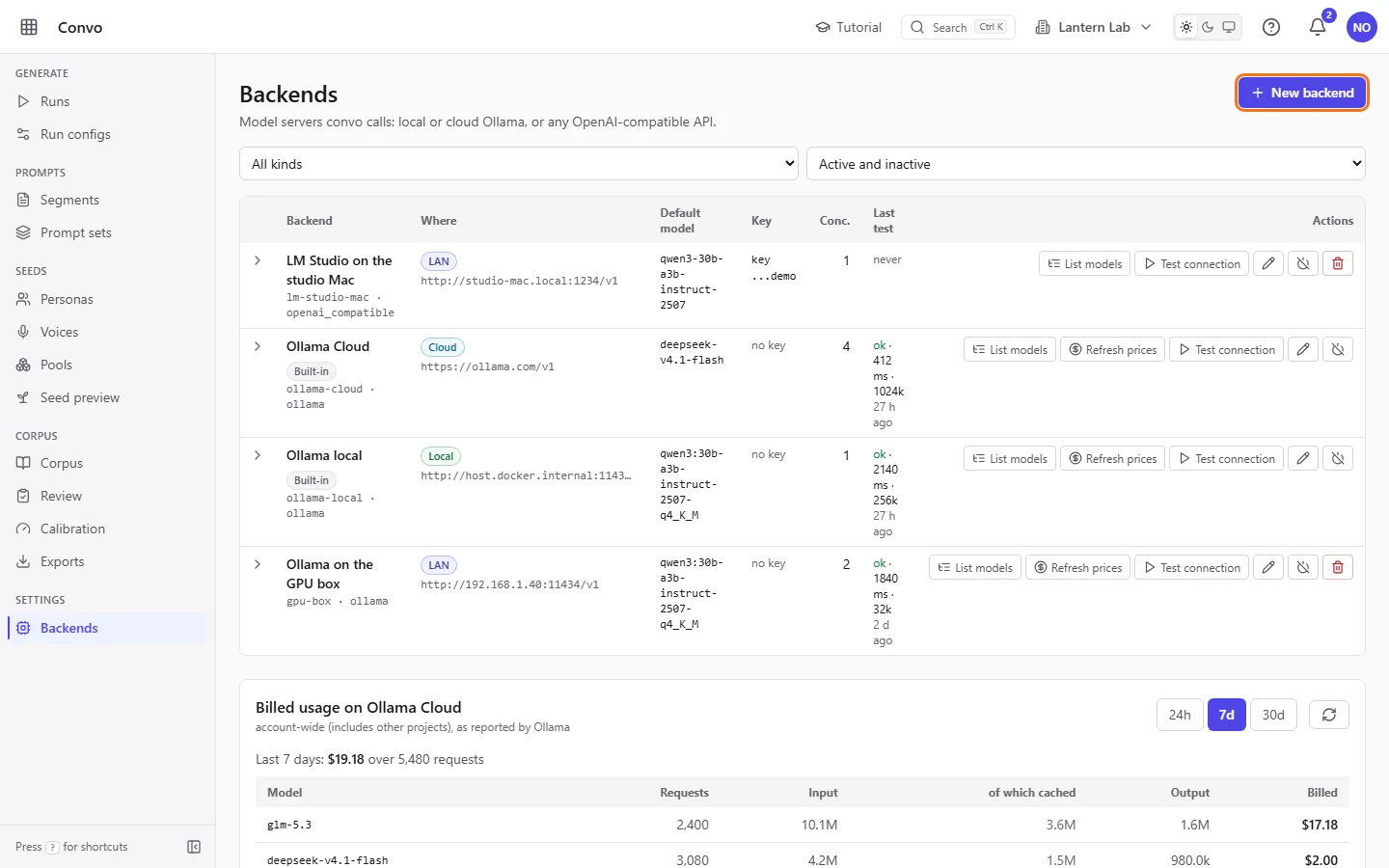
Open Backends and click "New backend". The form opens on the right. Nothing is saved until you press "Create".
- Step 2.
Fill in "Name" and "Slug", for example
Ollama on the GPU boxandgpu-box, leave "Kind" onollama, and set "Base URL" to the server's address, for examplehttp://192.168.1.40:11434. The slug is a short stable id in lowercase letters, digits and dashes.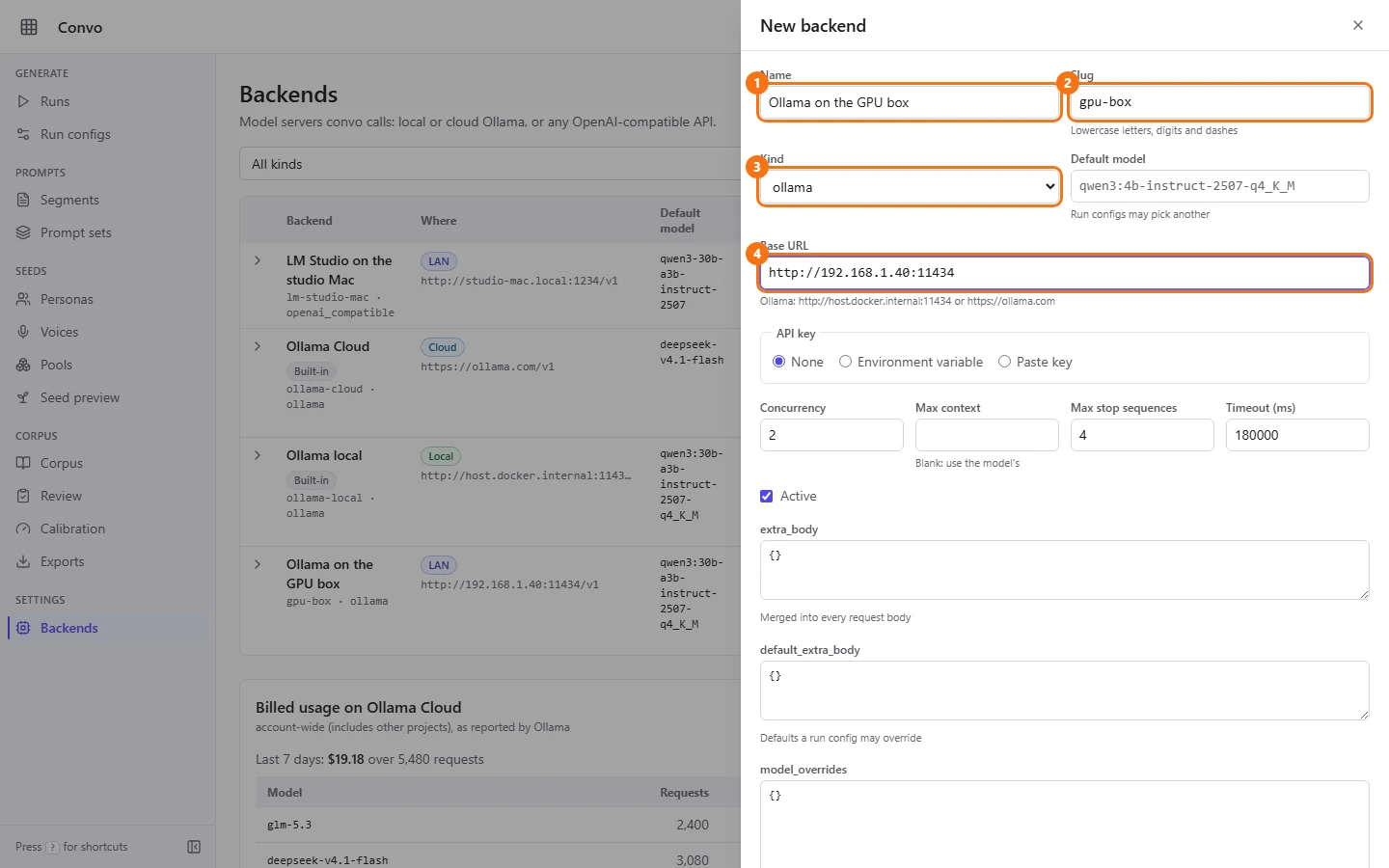
- Step 3.
Leave "API key" on "None", since a server on your own network usually has no key.

- Step 4.
Check the limits. "Concurrency" is how many requests run at once, and "Timeout (ms)" is how long one request may take. Leave "Max context" blank to use the model's own.

- Step 5.
Click "Create". Saving calls no model and costs nothing.

- Step 6.
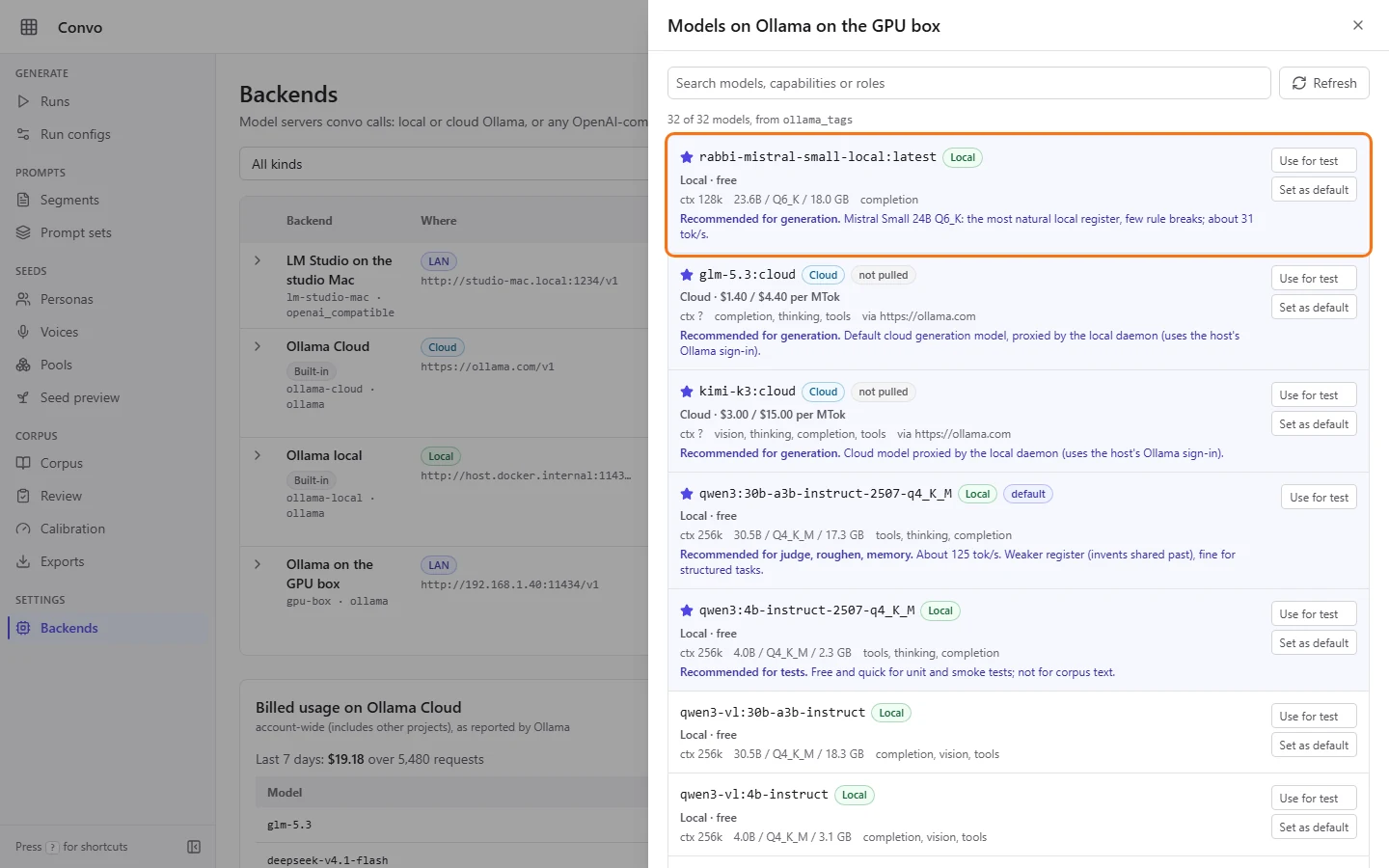
The new row's "Where" column says "LAN", for a server on your own network. Click "List models" on it to see what the server has. Its own models read "Local · free". Click "Set as default" on one to make it the backend's "Default model", or "Use for test" to try it.
- Step 7.
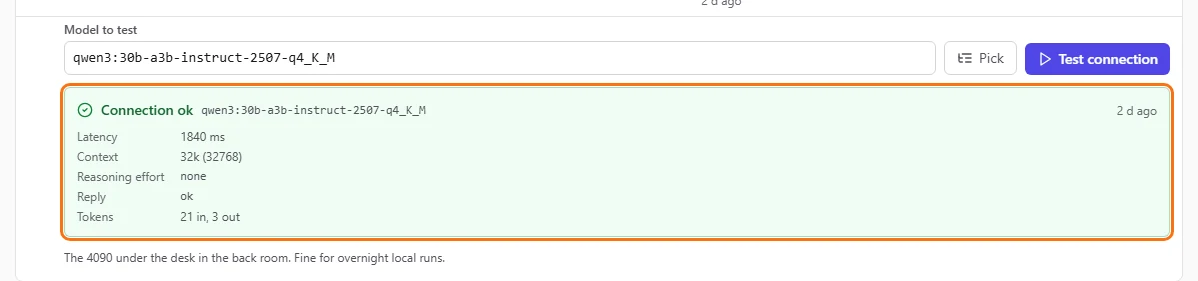
Click the arrow at the start of the row to open the test panel, then "Test connection". It sends one tiny request and shows "Connection ok" with the latency, the context size, the reply and the token counts. A cold local model can take up to a minute.
Your run configs can now pick this backend under "Backend" or "Judge backend". See Run configs.
Compare model prices before choosing one
You're setting up a run on Ollama Cloud and want to see what each model costs per token, and which ones convo recommends, before you choose.
- Step 1.
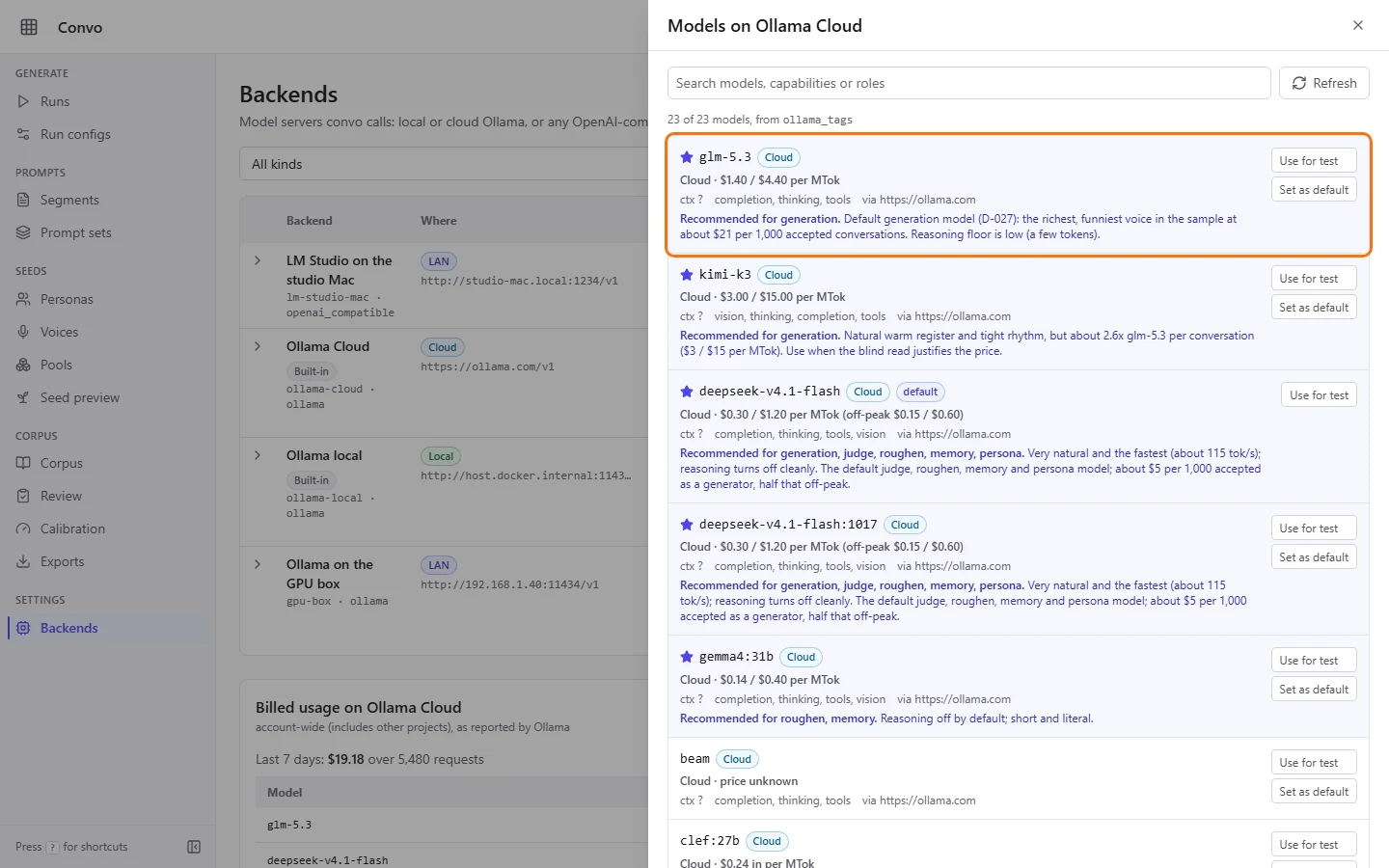
On the "Ollama Cloud" row, click "List models". Each model shows "Cloud" or "Local" and its price per MTok (million tokens), input then output. Recommended models are starred, listed first, and say what they're recommended for and why.
- Step 2.
Type in "Search models, capabilities or roles" to narrow the list, for example
judgeto see the models recommended for judging.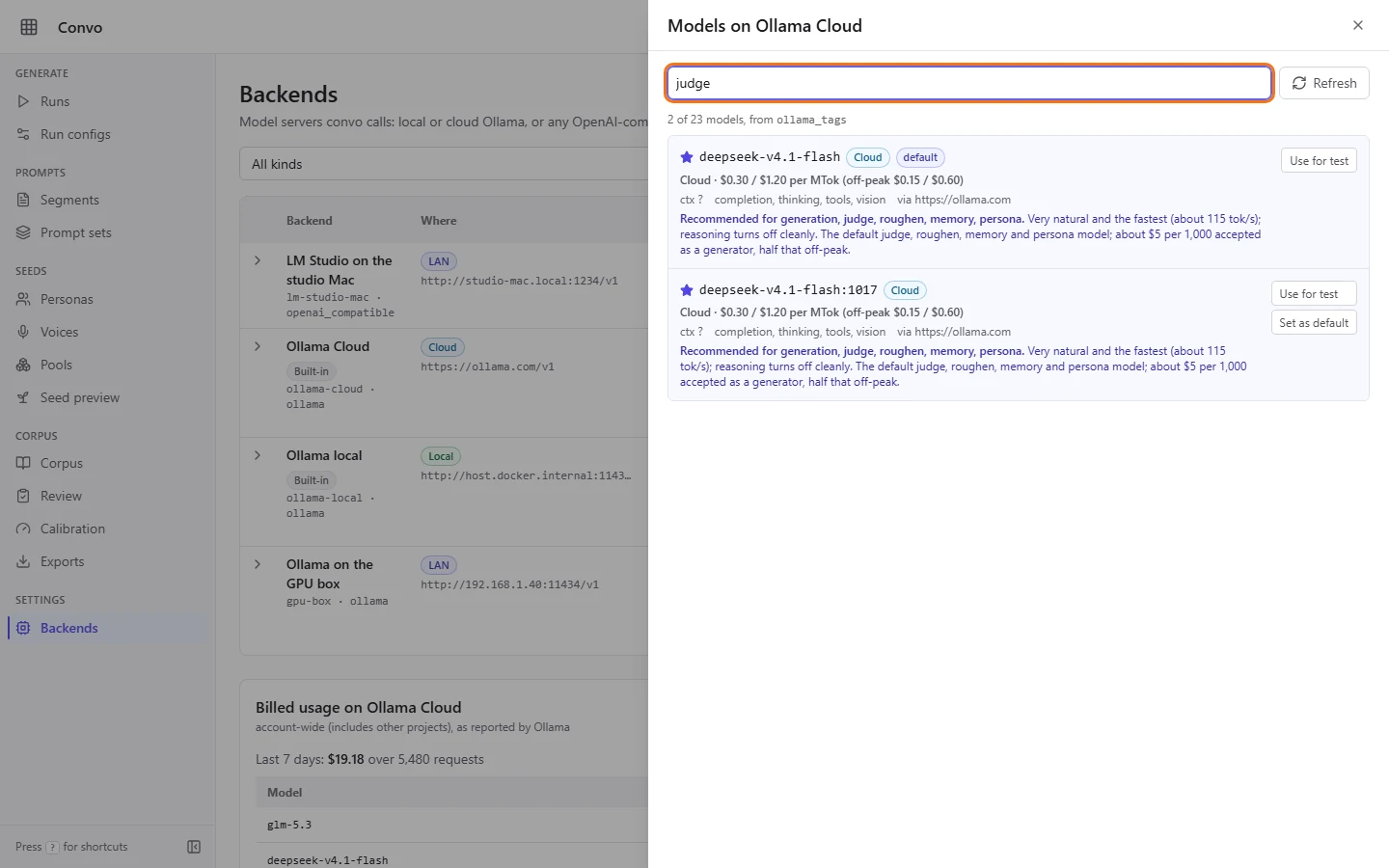
- Step 3.
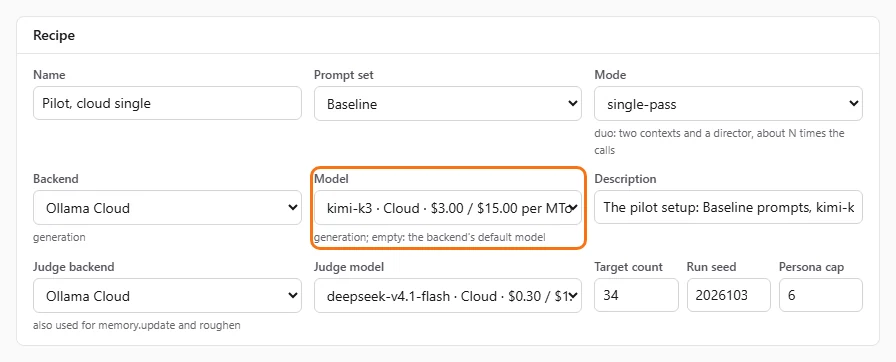
The same prices show in the "Model" and "Judge model" lists on Run configs, so you can compare there while you edit a config.
- Step 4.
If you're an admin, click "Refresh prices" on the row. Convo reads Ollama's published price list and shows each model's stored and published price. New and changed prices start ticked, unless the stored price was typed in by hand. Only the rows you tick change, and only when you click the apply button, which counts them, for example "Apply 1 price".
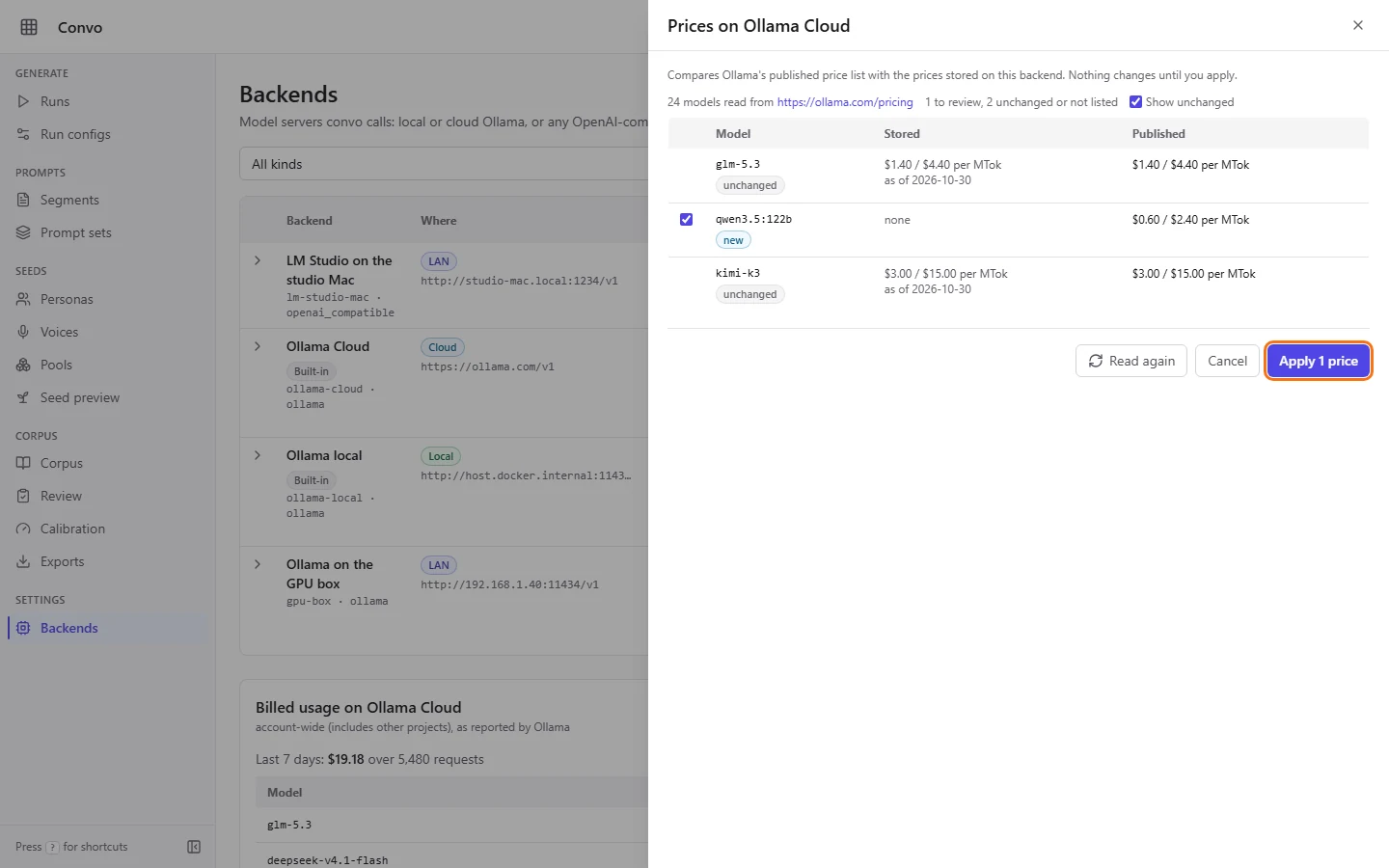
Example prices. Your refresh shows Ollama's current published rates.
Before a run starts, the start form uses these prices for its cost estimate. See Runs.
Connect a server that needs an API key
You want to add an OpenAI-compatible server that needs a key, without the key ever showing up in the browser again.
- Step 1.
Click "New backend" and set "Kind" to
openai_compatible. Fill in "Name", "Slug", "Base URL" and "Default model".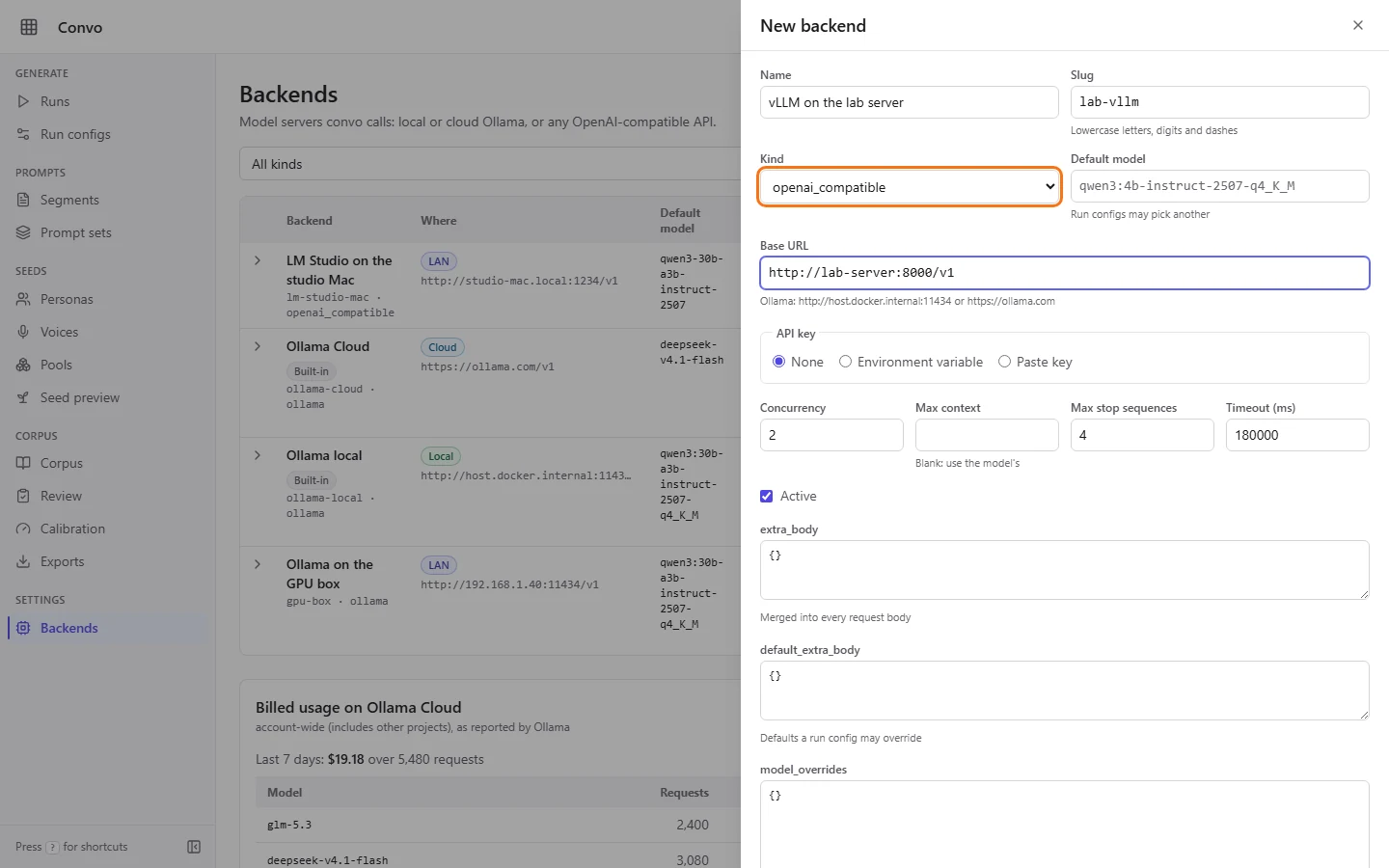
- Step 2.
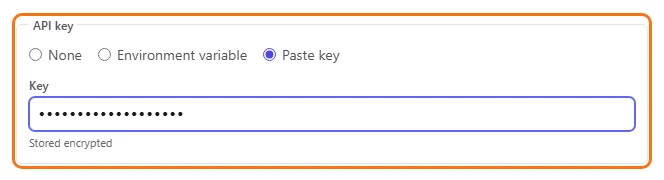
Under "API key", choose "Paste key" and paste it into "Key". Convo stores it encrypted. If the key is set as a variable on the server instead, choose "Environment variable" and type the "Variable name"; the value never reaches the browser.
- Step 3.
Click "Create". From now on the row's "Key" column shows only the last 4 characters.

- Step 4.
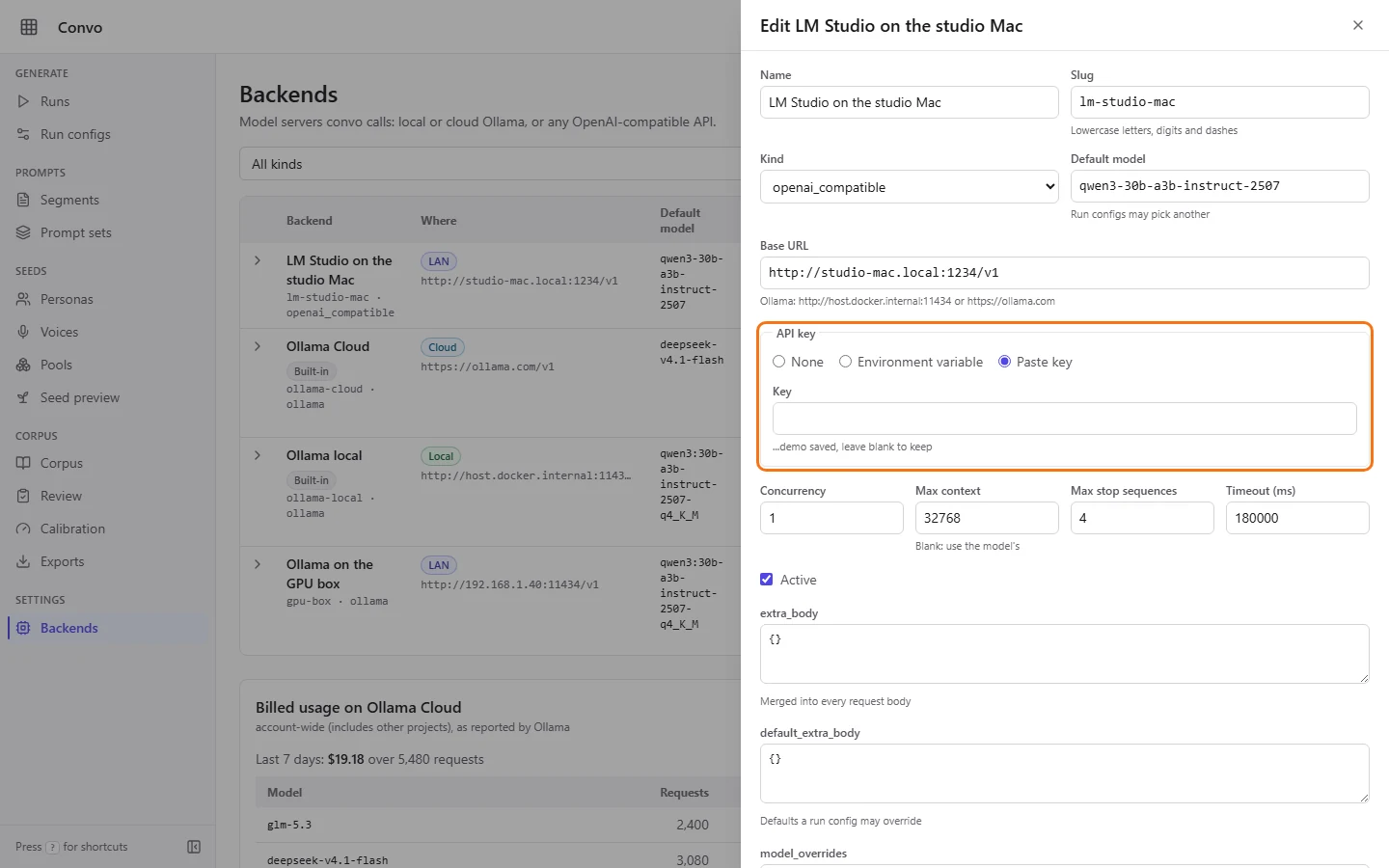
To change the key later, click the pencil ("Edit") on the row. The form shows which key is saved by its last 4 characters; leave "Key" blank to keep it, or paste a new one. Choosing "None" shows "Saving removes the stored key."
Deleting a backend stops every run config that uses it, and the built-in backends can't be deleted at all.