Runs
Start a run from a config with a cost estimate up front, watch it live, pause it, and read why conversations were rejected.
A run is one execution of a run config. At start it freezes the config, the prompt set's segment bodies, the personas, voices, pools, filter lists and model prices, so later edits never change it. Every conversation it makes goes through the filters and the judge, and the run page counts what was accepted, what was rejected and why.
Start a run and check the cost first
You have a run config ready and want to start a run, but you'd like to know roughly what it will cost before you commit.
- Step 1.
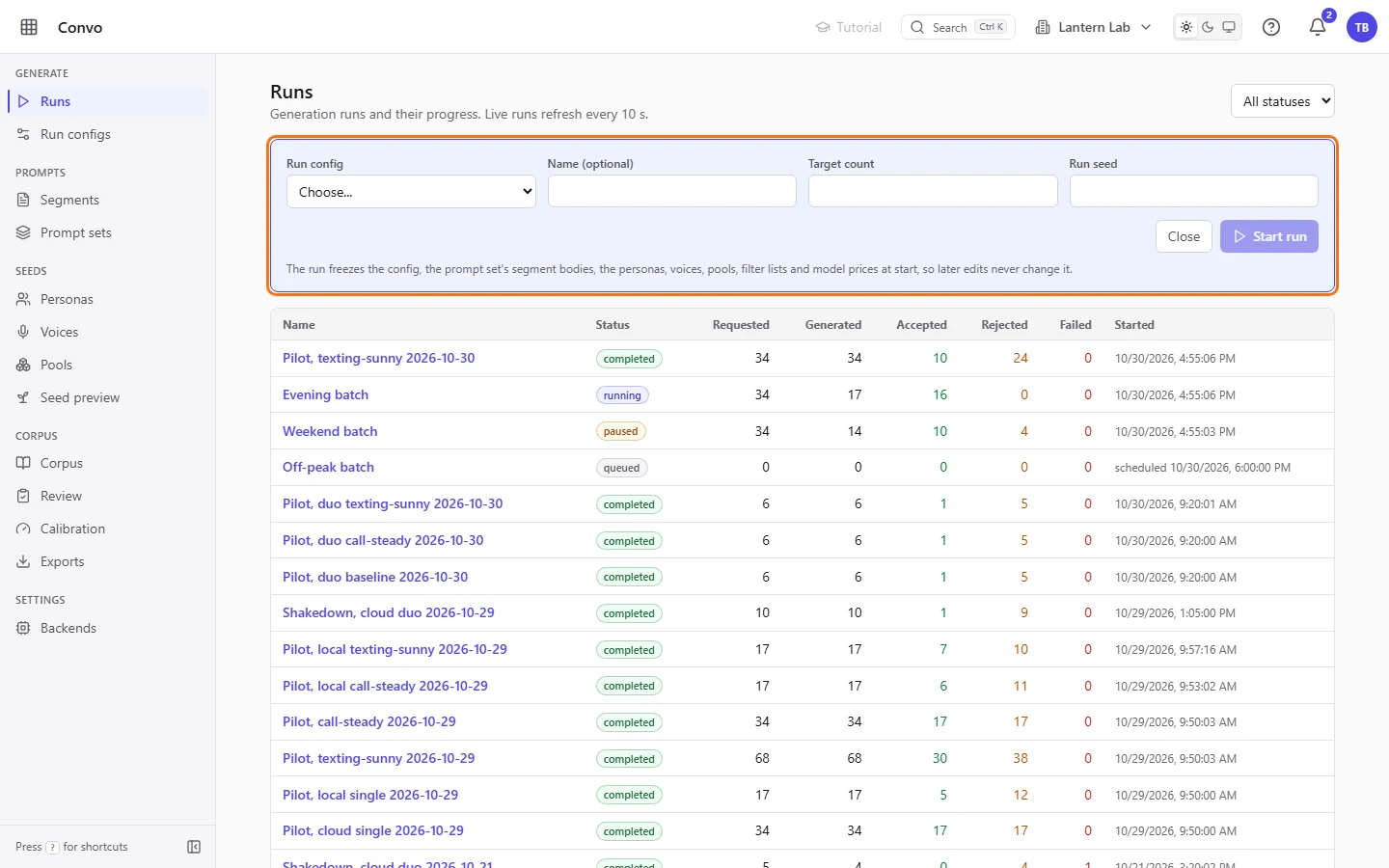
Open Runs and click "Start run". A form opens above the list.
- Step 2.
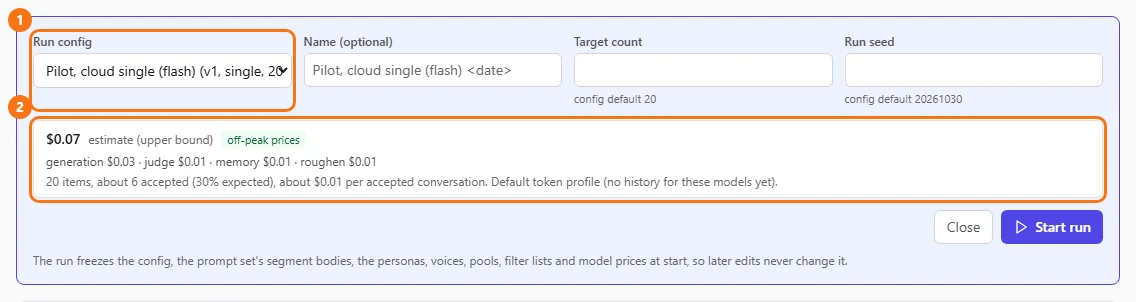
Pick a config in "Run config". Each option shows its name, version, mode and target count. As soon as you pick one, an estimate appears: the total in dollars, the split across generation, judge, memory and roughen calls, and about how many conversations to expect accepted, with the cost per accepted conversation.
- Step 3.
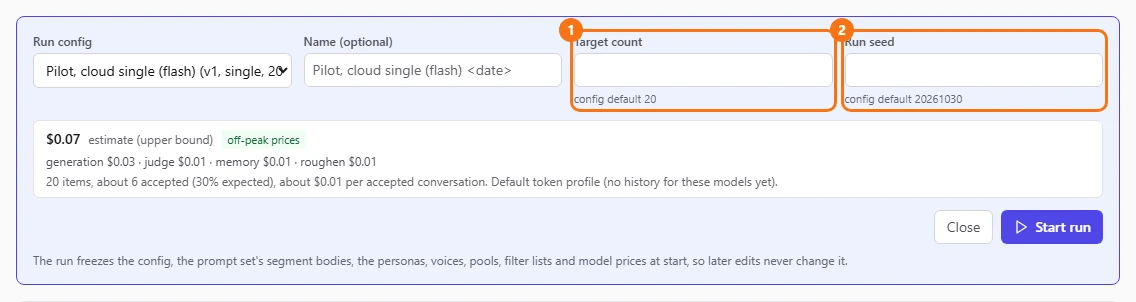
Change "Target count" or "Run seed" if this run should differ from the config. The hints under them show the config's defaults, and the estimate updates when you change the count. "Name (optional)" defaults to the config's name and the date.
- Step 4.
Click "Start run". If the estimate is above the config's "Confirm runs estimated above (USD)" threshold, the first click only shows a warning with the estimate and the threshold, and the button changes to "Start anyway". Click it again to start.
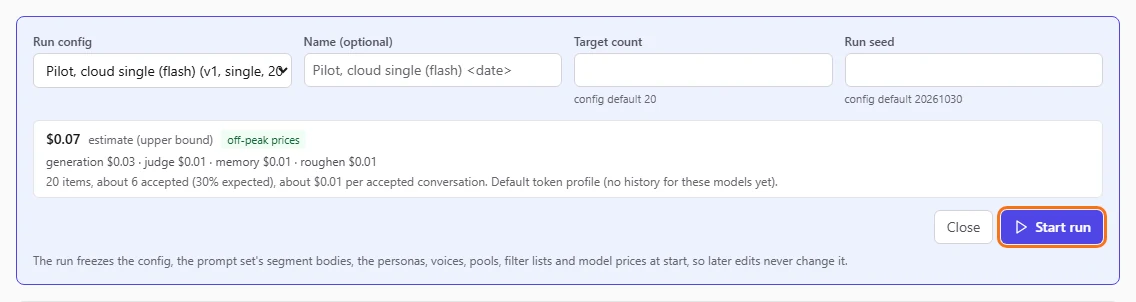
The run page opens and the counters start moving. If the backend has off-peak prices, the form also offers "Start at next off-peak window", and the run waits queued until then.
Pause a run and pick it up later
A run is going and you need to stop it for a while, for example to check a few conversations before it spends any more.
- Step 1.
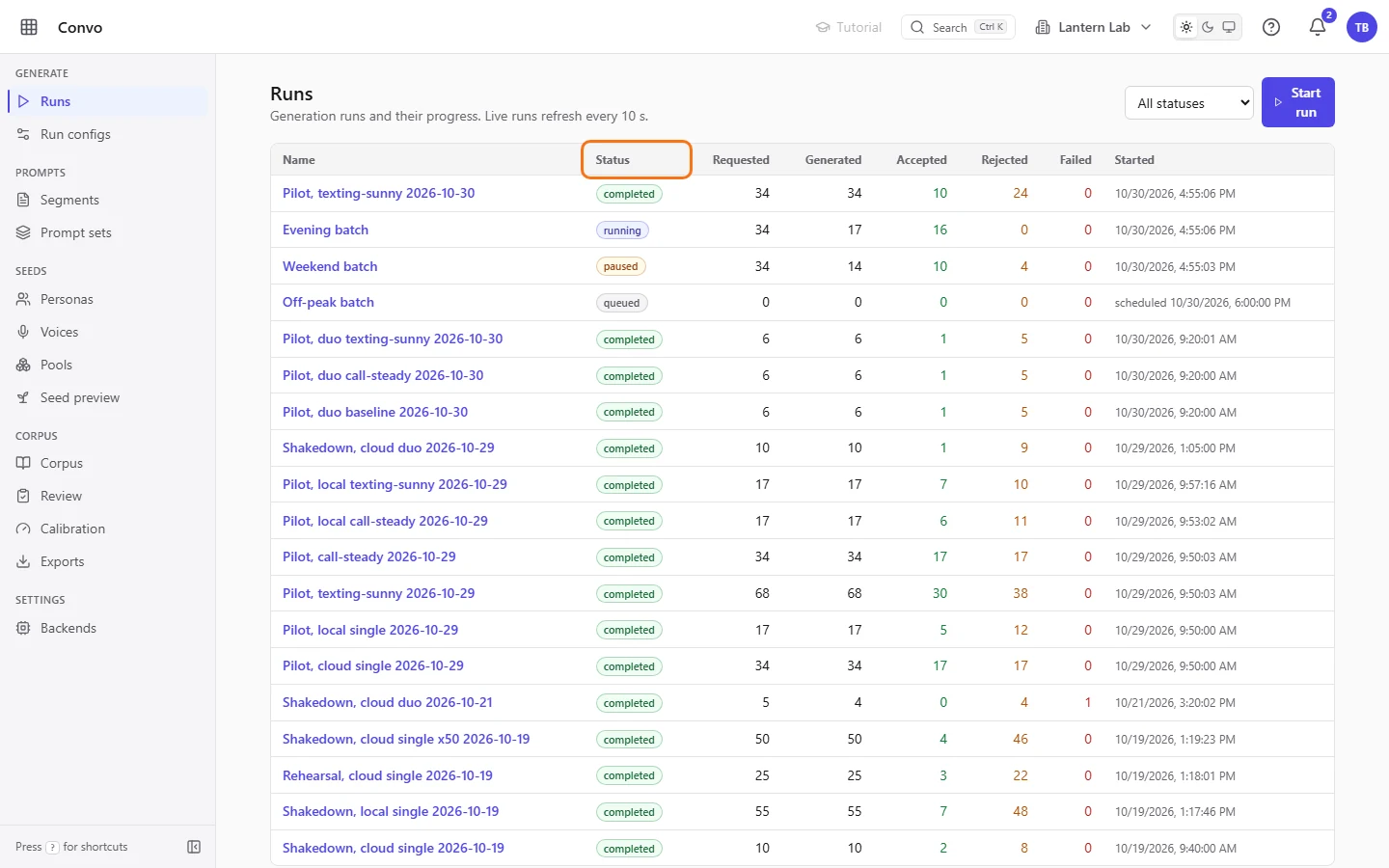
Open Runs. The list shows each run's status and counts, and live runs refresh every 10 seconds. Click a run's name to open it.
- Step 2.
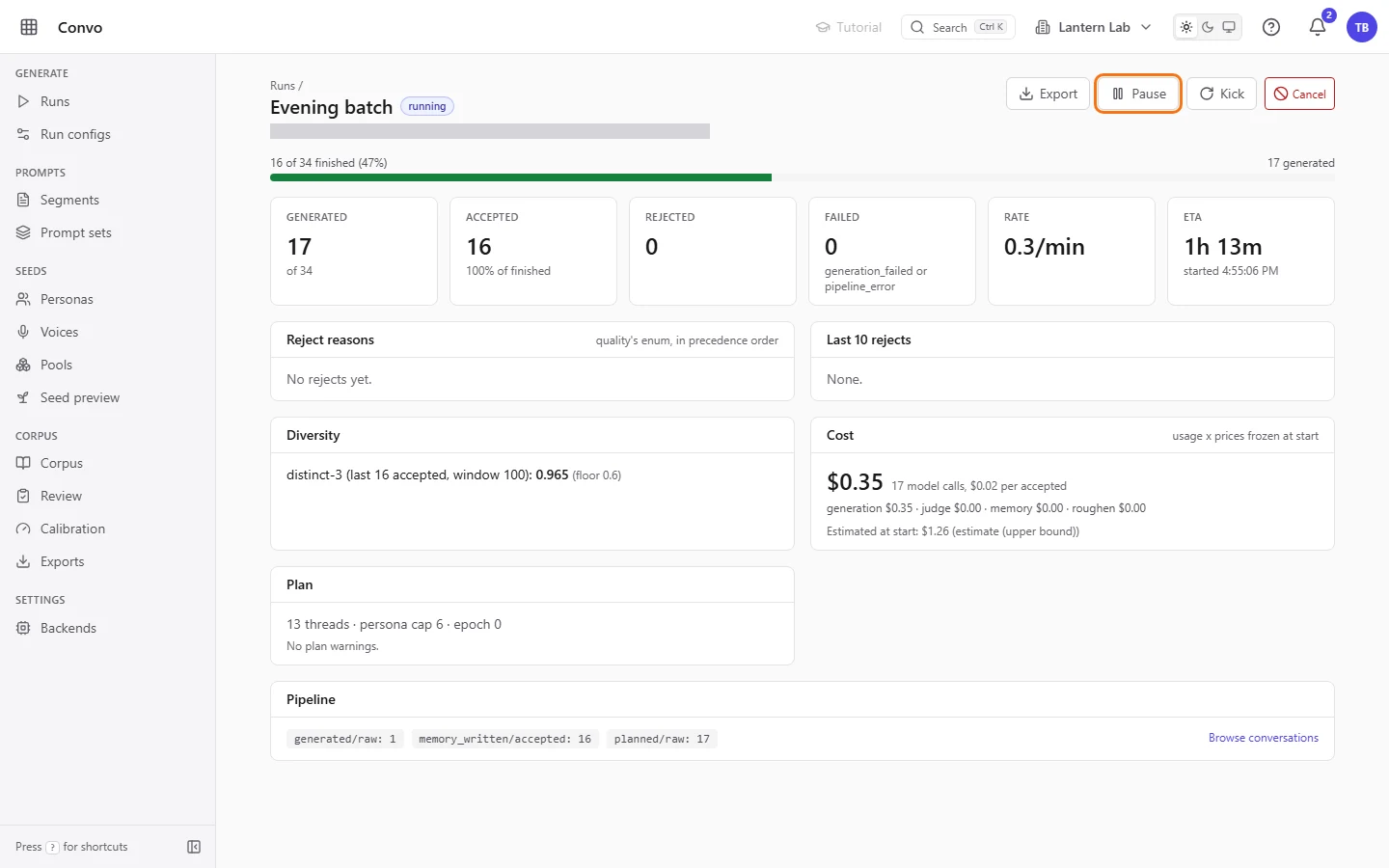
On a running run, click "Pause". A model call already under way finishes, and convo sends nothing new after it.
- Step 3.
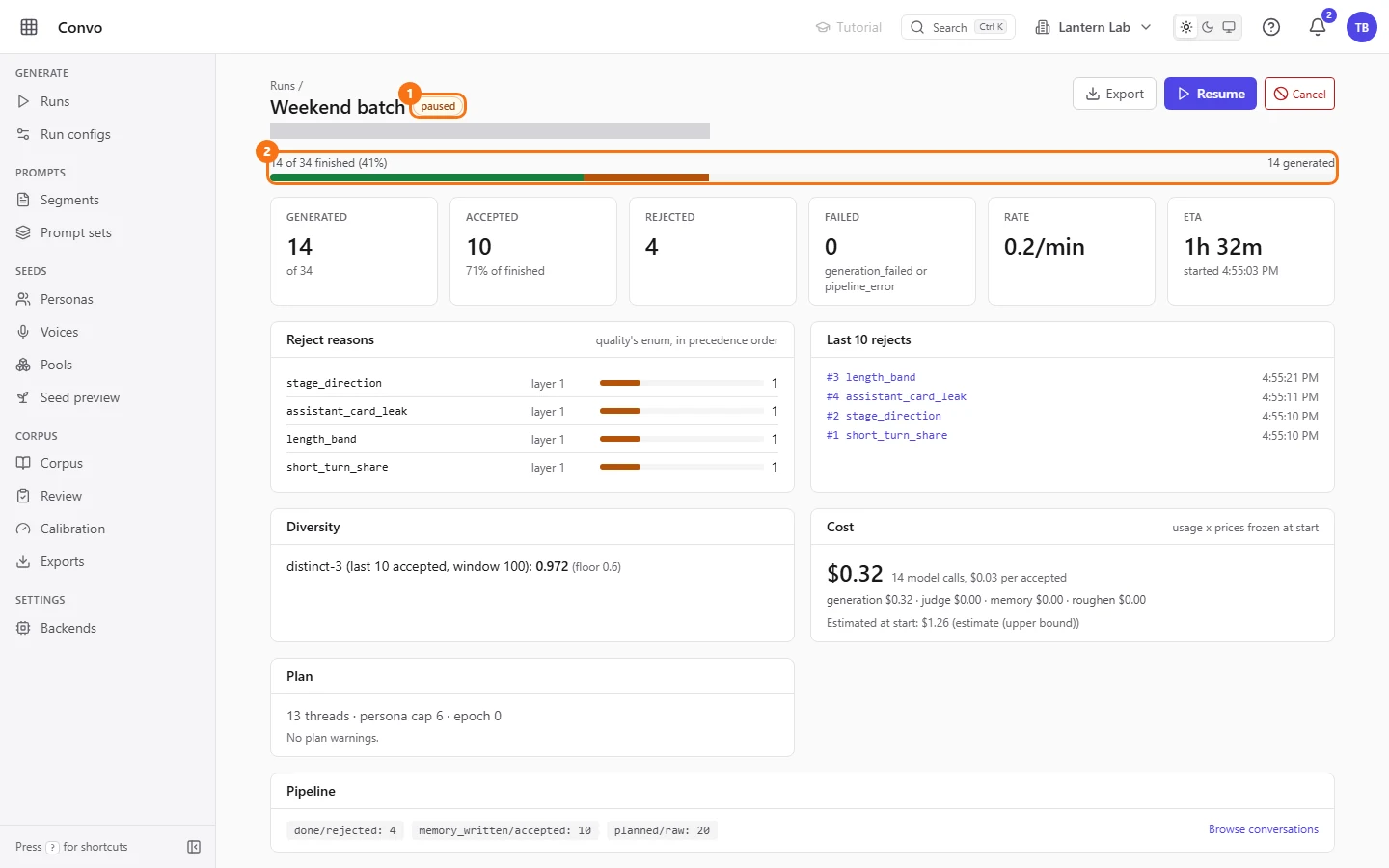
A paused run shows "paused" next to its name and a "Resume" button. The counters and the progress bar stay where they stopped.
- Step 4.
Click "Resume" to carry on. Each thread picks up at its next step, so nothing already done is generated again.

If a running run looks stuck, "Kick" sends every thread's next conversation again. "Cancel" stops the run for good. It asks you to confirm first, because model calls in flight are aborted.
Find out why conversations were rejected
A run has finished and fewer conversations were accepted than you hoped. You want to see what went wrong before you change the prompts or the filters.
- Step 1.
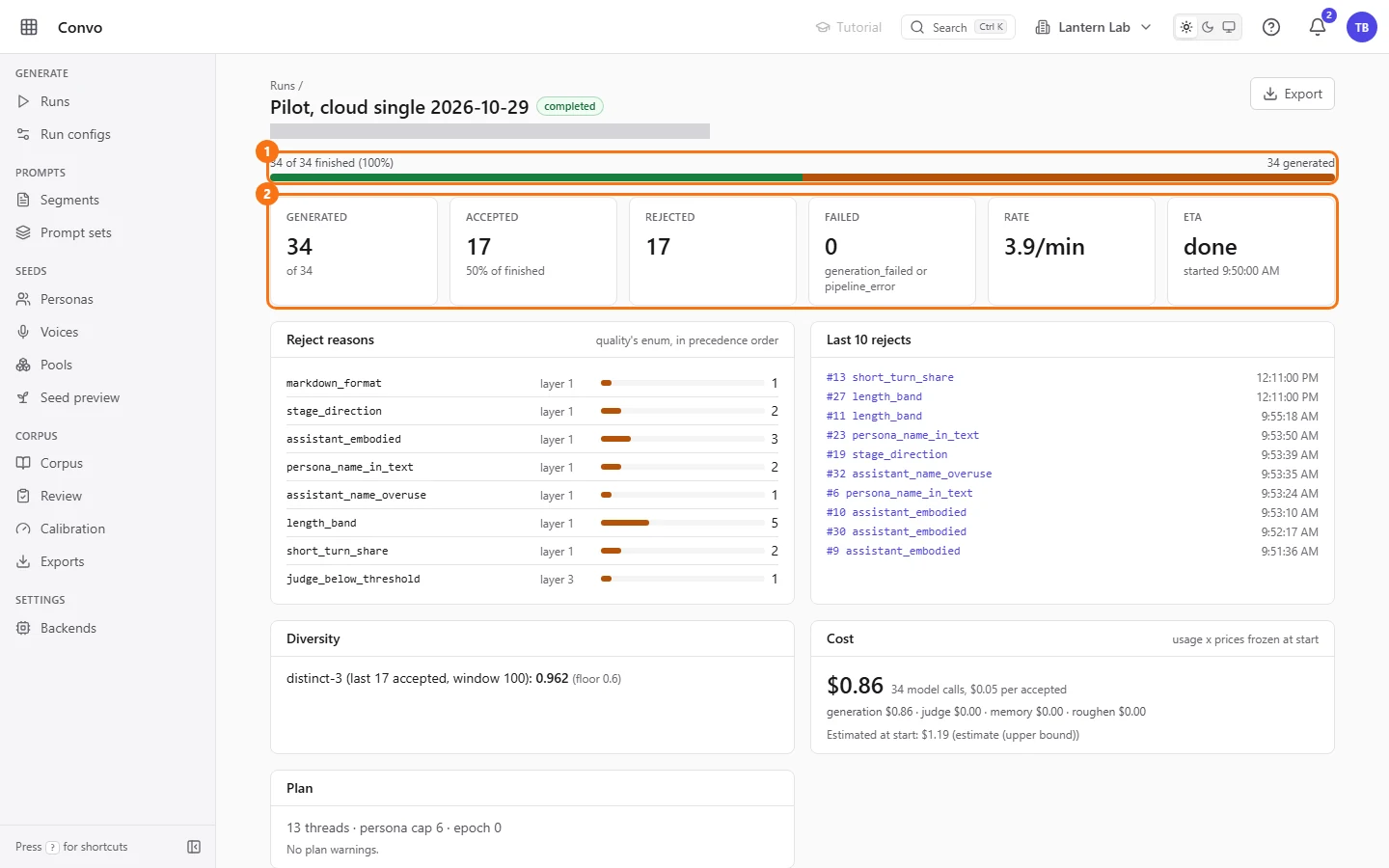
Open the finished run. The bar shows accepted in green, rejected in amber and failed in red, and the counters below give "Generated", "Accepted", "Rejected", "Failed", "Rate" and "ETA". "Accepted" also counts conversations later edited or flagged, so a flag doesn't take one off the total.
- Step 2.
Read "Reject reasons". Each reason is listed with the layer that set it and a count, in precedence order. Layer 1 is the mechanical rules, such as
stage_directionorassistant_embodied, and layer 3 is the judge (judge_below_threshold). Layer 2, the diversity check, rejects near-duplicates of accepted conversations and copies of the prompt's examples, and layer 0 means a generation or pipeline step failed; those count under "Failed". A reason shows up only if the run hit it.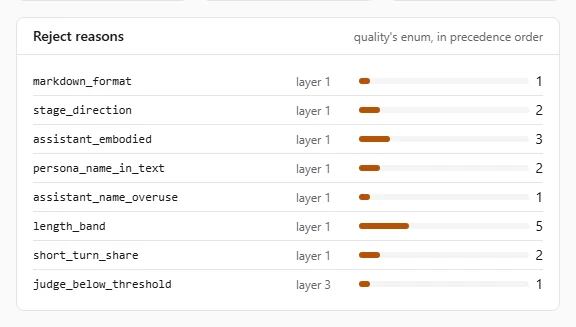
- Step 3.
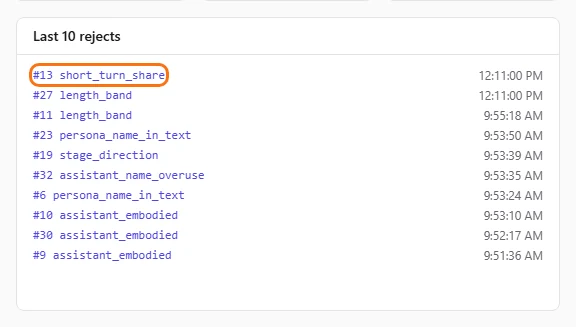
Under "Last 10 rejects", click one to open that conversation with its rejection reason.
- Step 4.
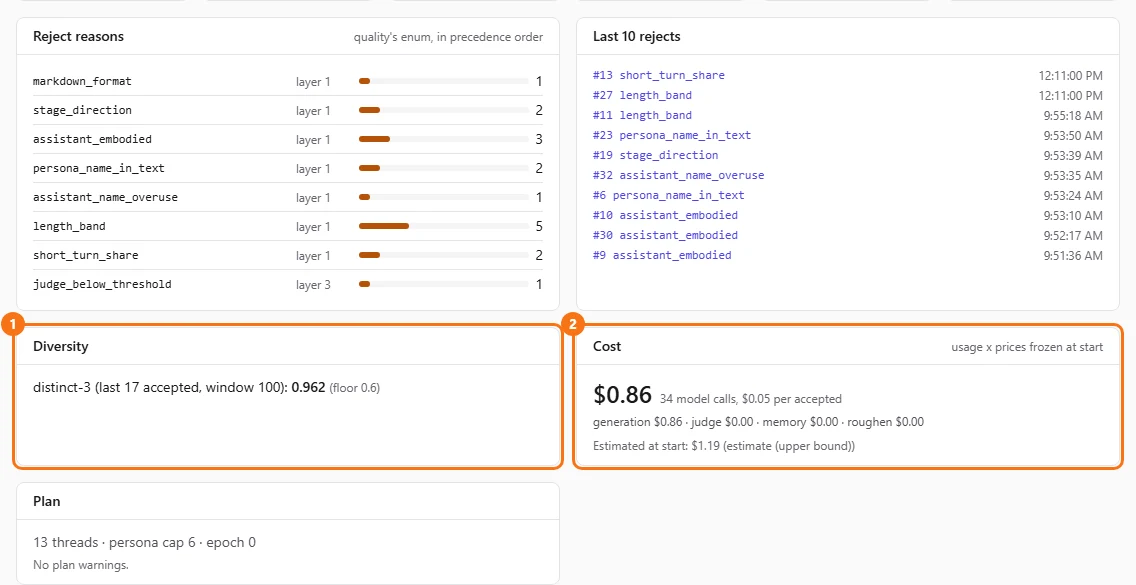
Check "Diversity" and "Cost". Diversity shows distinct-3 over the last 100 accepted conversations, in red if it falls under the floor. Cost shows what the run spent, from its usage and the prices frozen at start, next to the estimate it started with.
- Step 5.
Click "Browse conversations" at the bottom to see every conversation from this run on Corpus, or "Export" at the top to export the whole run.

To act on what you found, see Run configs for the length mix and the filters, and Review for reading and fixing conversations.