Calibration
Check how often the judge agrees with people, try stricter thresholds as a what-if, and re-cut a run from stored scores without regenerating.
A model judge scores every conversation from 1 to 5 on seven dimensions, and the accept thresholds turn those scores into accept or reject. Calibration compares the judge's verdicts with your reviewers' labels, so you know whether to trust it. The scores are stored, so you can change the thresholds later without generating anything again.
Check whether the judge agrees with people
Nadia's team has been labelling conversations from several pilot runs in Review. Before she lets the judge's verdicts filter a bigger run, she wants to know if it calls conversations the way her reviewers do.
- Step 1.
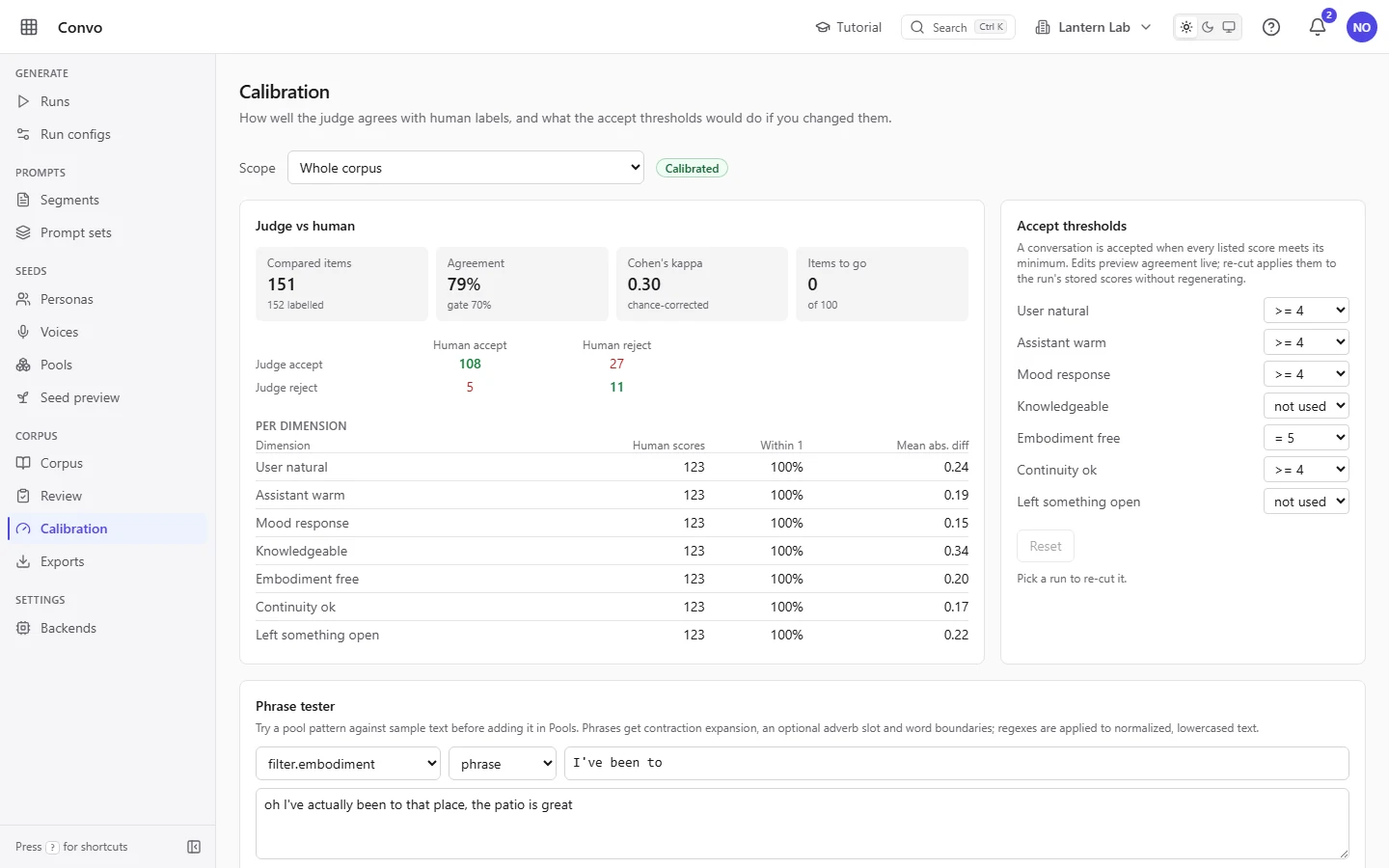
Open Calibration from the sidebar. "Scope" starts on "Whole corpus", which covers every run at once.
- Step 2.
Look at the badge next to the scope. It reads "Calibrated" only when there are at least 100 compared items and the judge agrees with people at least 70% of the time.

- Step 3.
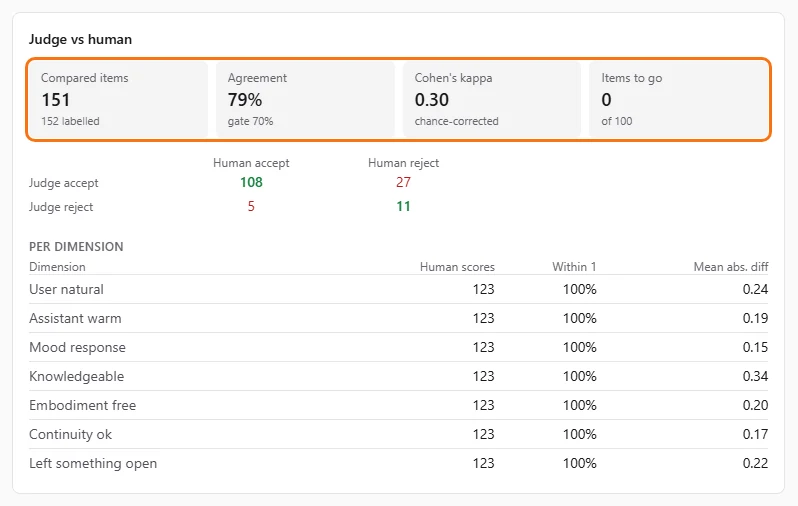
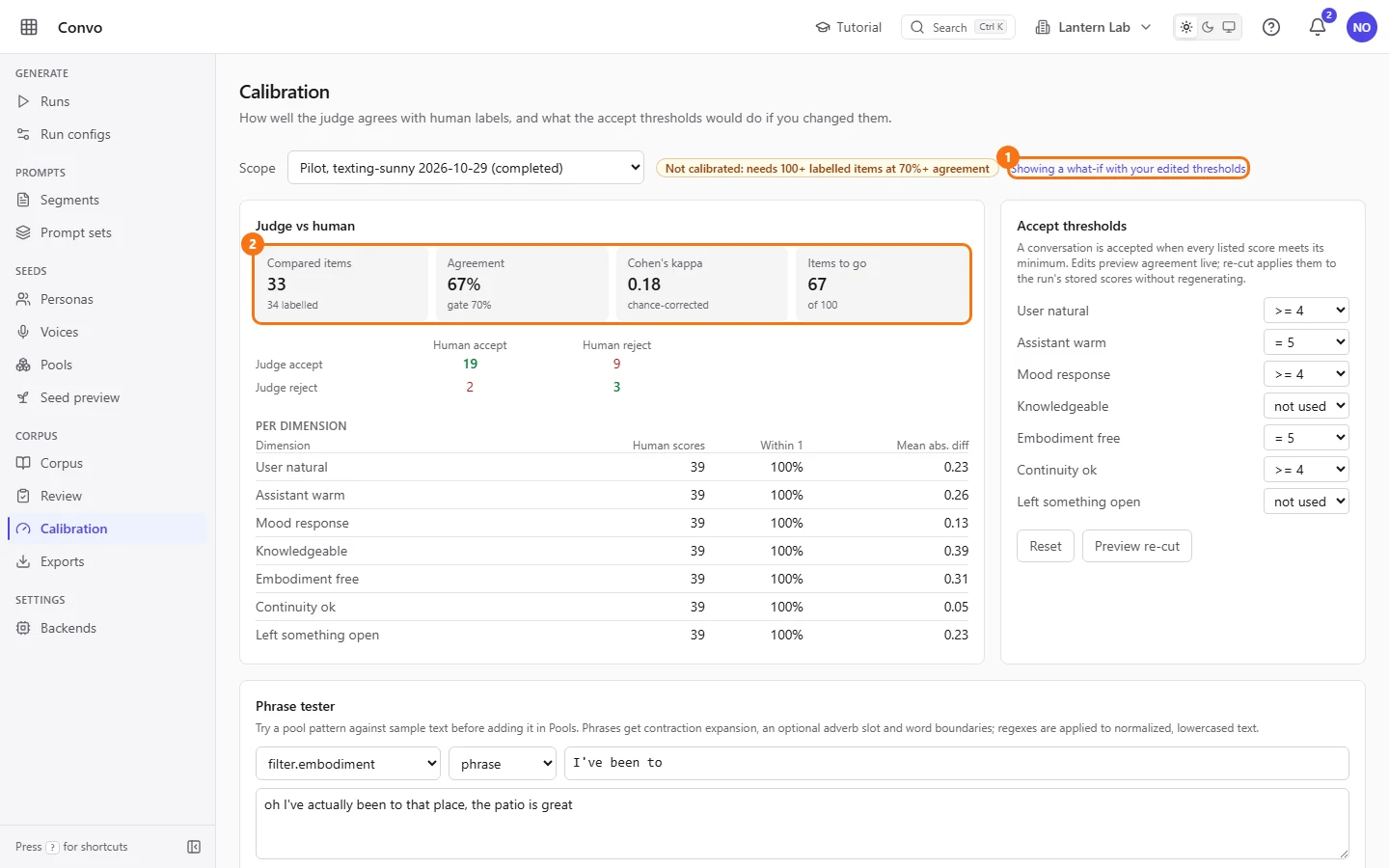
Read the four numbers under "Judge vs human". "Compared items" counts conversations that have both a judge score and a human label. "Agreement" is how often the judge matches the majority human verdict, "Cohen's kappa" corrects that for chance, and "Items to go" is how many more compared items the scope needs to reach 100, counting down to 0.
- Step 4.
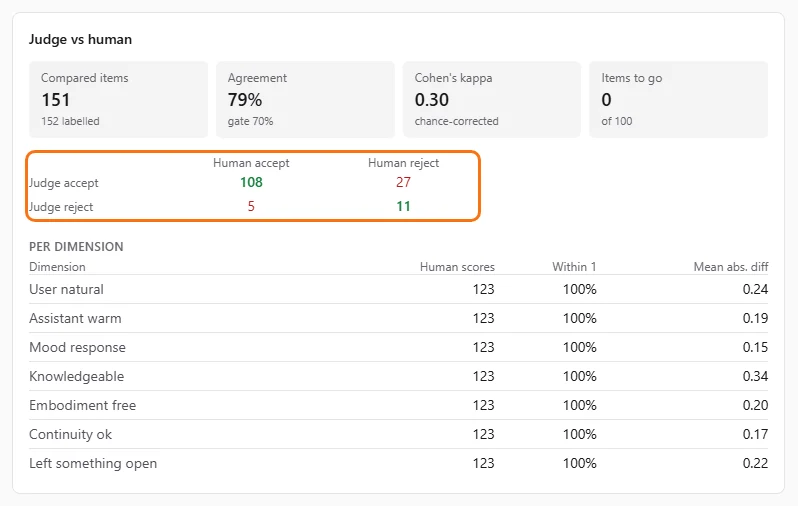
Check where they disagree in the table below. "Judge accept" with "Human reject" means the judge is too lenient; "Judge reject" with "Human accept" means it is too strict.
- Step 5.
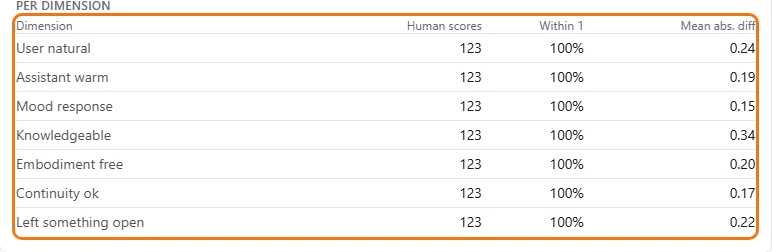
Look at "Per dimension". Where reviewers gave optional 1-5 scores, "Within 1" shows how often the judge landed within a point of them and "Mean abs. diff" the average gap. A dimension nobody scored shows "-".
- Step 6.
Under "Scope", choose one run to see it on its own. A single pilot run usually has fewer than 100 judged, labelled conversations, so its badge reads "Not calibrated: needs 100+ labelled items at 70%+ agreement", and "Items to go" shows how many more it needs.

The judge only scores conversations that pass the earlier filters, so a run has fewer judged conversations than it generated. To calibrate a run on its own, label more of its judged conversations in Review or from the "Human label" section of a conversation's details drawer. Each verdict on a judged conversation adds one compared item.
Try a stricter threshold and re-cut a run
Nadia's table shows the judge accepting conversations her reviewers rejected, mostly ones where the assistant sounded flat. She wants to see what a stricter warmth threshold would do, and apply it to the run without paying for new model calls.
- Step 1.
In Calibration, choose the run under "Scope". A re-cut works on one run at a time.
- Step 2.
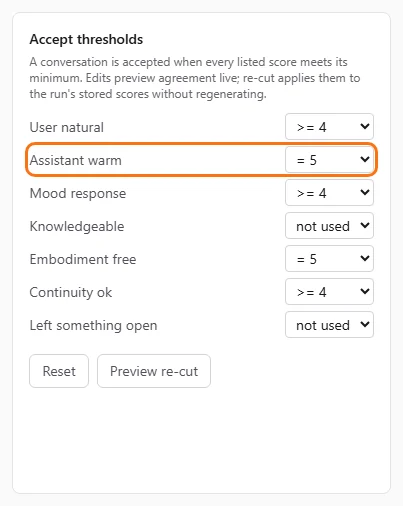
Under "Accept thresholds", change "Assistant warm" from ">= 4" to "= 5". A conversation is accepted only when every listed score meets its minimum, and "not used" leaves a dimension out.
- Step 3.
The report on the left recomputes at once and the page says "Showing a what-if with your edited thresholds". The new figures replace the old ones rather than sitting beside them, so note the old agreement before you change a threshold; "Reset" puts the saved thresholds and their figures back. Nothing is saved yet.
- Step 4.
Click "Preview re-cut". The box below tells you how many judged conversations are eligible, how many would be accepted and rejected, and how many would change status.
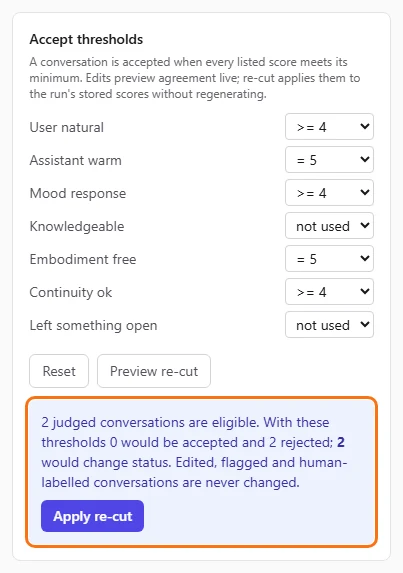
A preview changes nothing - Step 5.
If the numbers look right, click "Apply re-cut". Convo saves the thresholds for this run and re-decides accept and reject from the scores it already has, with no model calls. Edited, flagged and human-labelled conversations are never changed, and nor are conversations the filters rejected.
To undo a re-cut, set the old thresholds and apply again. Exports made after a re-cut follow the new statuses, so export again if you need the stricter set. You need permission to change runs for "Preview re-cut" and "Apply re-cut"; without it the buttons are greyed out.
Test a filter phrase before adding it to a pool
Theo keeps seeing the assistant say it has been somewhere, and wants to add a phrase to the embodiment filter. First he checks that the phrase catches what he means.
- Step 1.
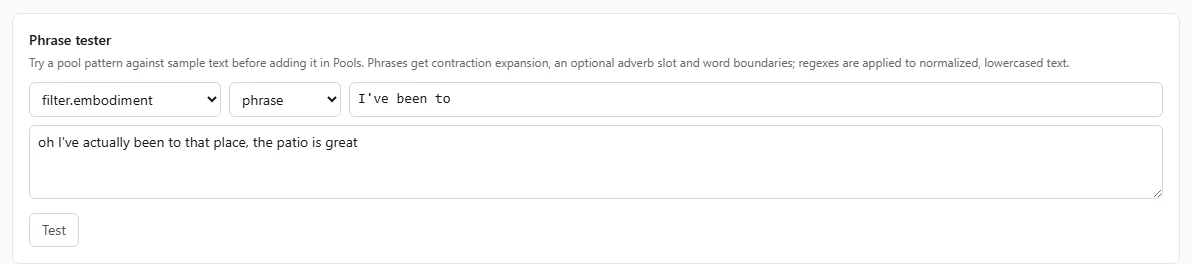
Scroll down to "Phrase tester" on the Calibration page.
- Step 2.
Choose the filter pool, for example
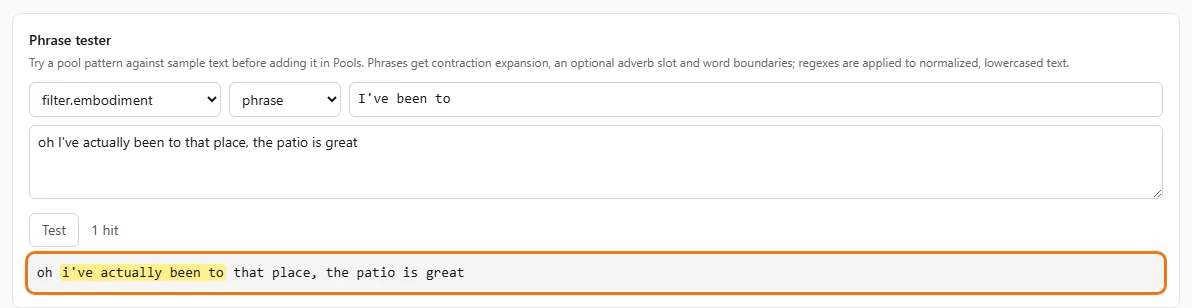
filter.embodiment, then "phrase" or "regex", and type the pattern. A phrase expands contractions, allows an optional adverb (so "I've been to" also catches "I've actually been to") and matches whole words only; a regex runs on normalized, lowercased text.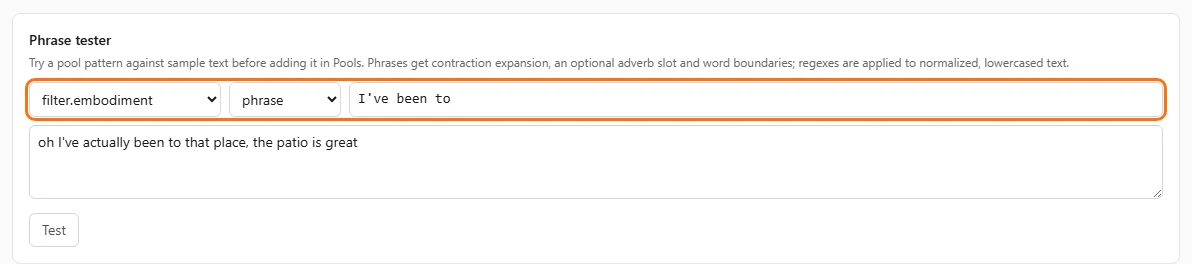
- Step 3.
Paste a line a conversation might contain into the sample text and click "Test". The hits are counted and highlighted in the normalized text. No highlight means the pattern wouldn't catch that line.
Nothing in the tester is saved. When the pattern works, add it to the pool in Pools.