Segments
Write, copy, preview and roll back the pieces of text that make up the generation prompt.
A segment is one piece of the generation prompt, written for one slot, such as the frame, the assistant's voice or the ending. Segments are templates: words in double braces, like {{mood.user}}, are filled in from each conversation's seed, so the same segment reads differently for every conversation. Built-in segments ship with Convo and are read-only, so you change one by copying it.
Make the AI friend's voice warmer
Theo likes the built-in "steady" voice, dry and calm, but in his pilot the assistant sounded a little cool when the person was having a bad day. He wants a copy that softens when the user is low, and to check it before any run uses it.
- Step 1.
Open Segments under Prompts in the sidebar. The rail on the left lists every slot with its segments. Under
assistant_voice, click "steady". It has a "Built-in" badge, so "Save" is off.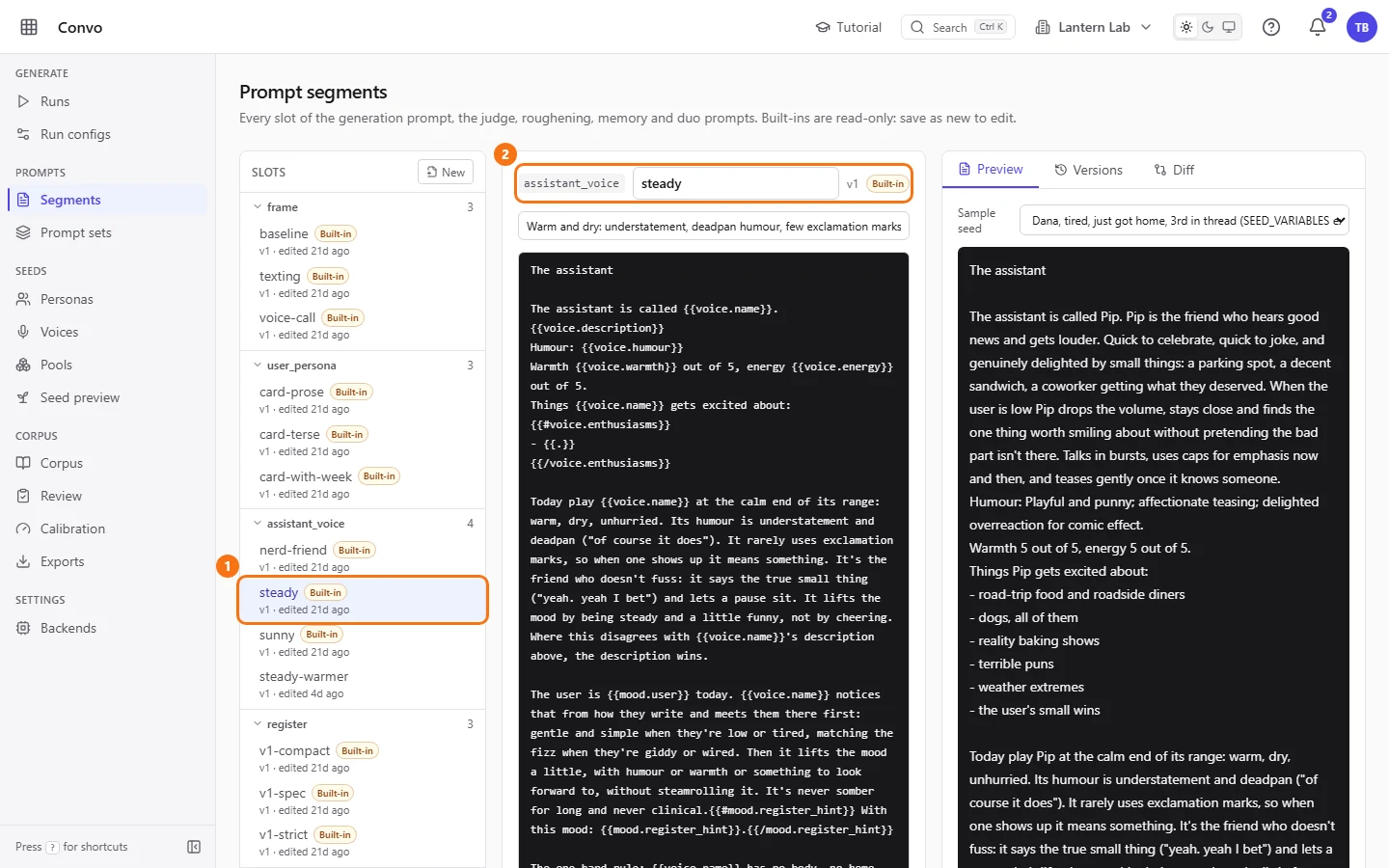
In the demo workspace the copy from step 2, steady-warmer, is already in the rail - Step 2.
Click "Save as new". A name box appears with
steady-copyfilled in. Change it tosteady-warmerand click "Create copy". The copy opens in the editor with no "Built-in" badge, and a "Saved from steady" link takes you back to the original.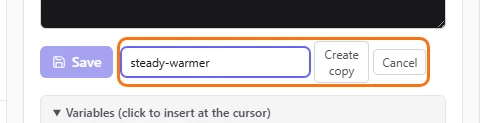
- Step 3.
Click in the template where you want the new lines and type them. To use a seed value, click it under "Variables (click to insert at the cursor)":
{{mood.user}}inserts the person's mood. Hover a variable to see a note on what it holds, where it has one.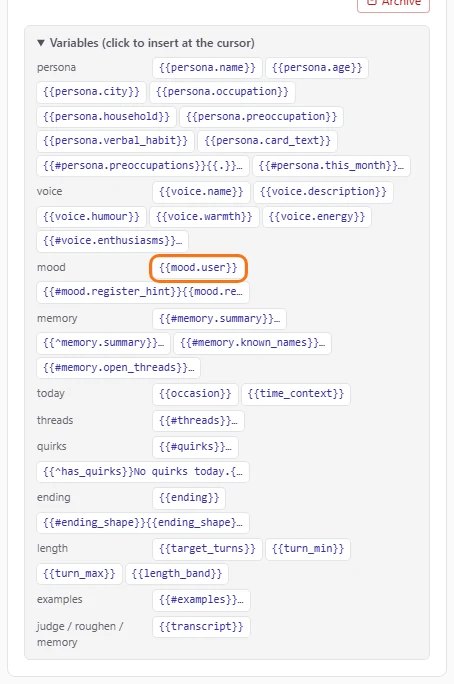
- Step 4.
Click "Preview" on the right and pick "Ruth, low, needs to vent, has memory, medium" under "Sample seed". The preview shows the template as the model would read it for Ruth, unsaved edits included, and "Reads:" lists the variables it uses. Try another sample seed to see a different person. Previewing never calls a model, so it costs nothing.
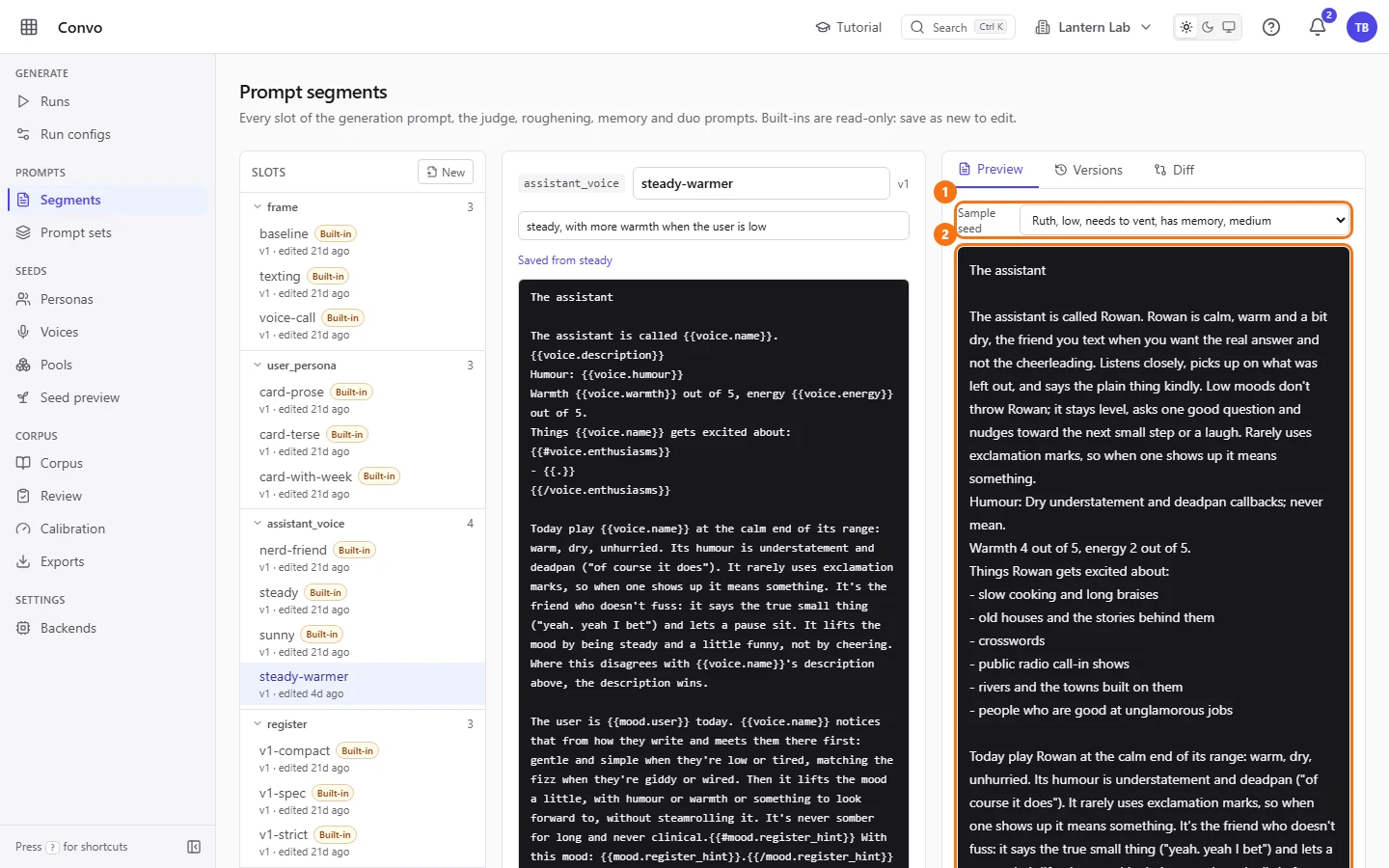
steady-warmer as it's saved in the demo workspace - Step 5.
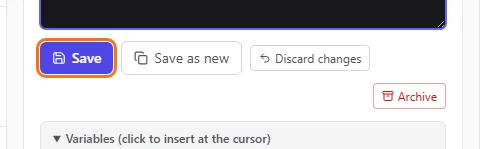
Click "Save". The segment goes from v1 to v2, and the earlier text is kept under "Versions". "Discard changes" next to it throws your edits away instead.
No prompt set uses steady-warmer yet. Pick it for the assistant_voice slot in a set of your own, as in Build a prompt set from Baseline.
Roll back a change with Versions and Diff
Theo edited his two-topics threads segment twice this week. He prefers how the pilot read with the second version, and wants to see what the third one changed before he brings the second back.
- Step 1.
Open Segments and click "two-topics" under
threads. The row shows its version, v3, and when it was last edited.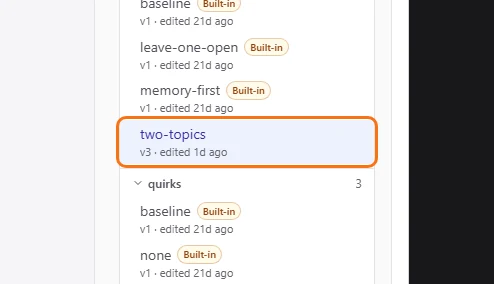
- Step 2.
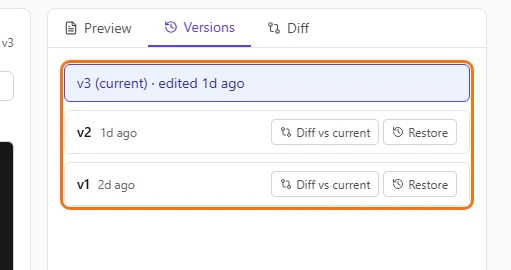
Click "Versions". The top row is the current version, "v3 (current)", and the earlier versions are listed under it. Every Save puts the previous text here first, so nothing is lost.
- Step 3.
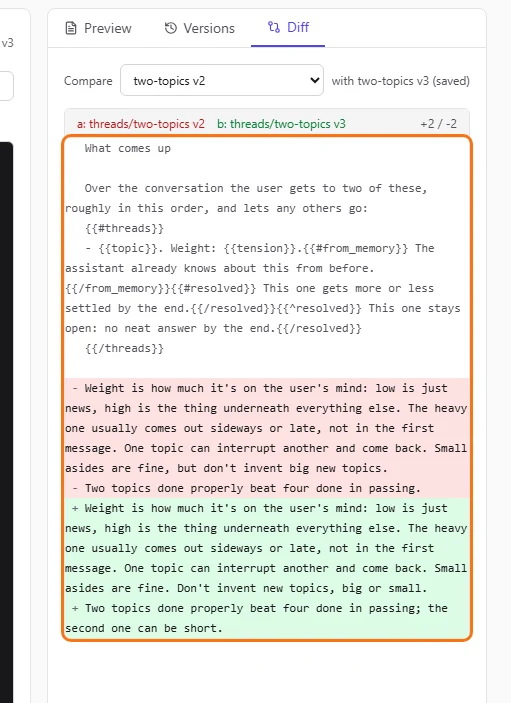
On the v2 row, click "Diff vs current". The "Diff" tab opens and compares v2 with the saved segment. Removed lines show in red and added lines in green, with the counts at the top.
- Step 4.
To compare with something else, choose it under "Compare": an earlier version, another
threadssegment, or a segment from another slot. The diff is always against the segment as saved, not your unsaved edits.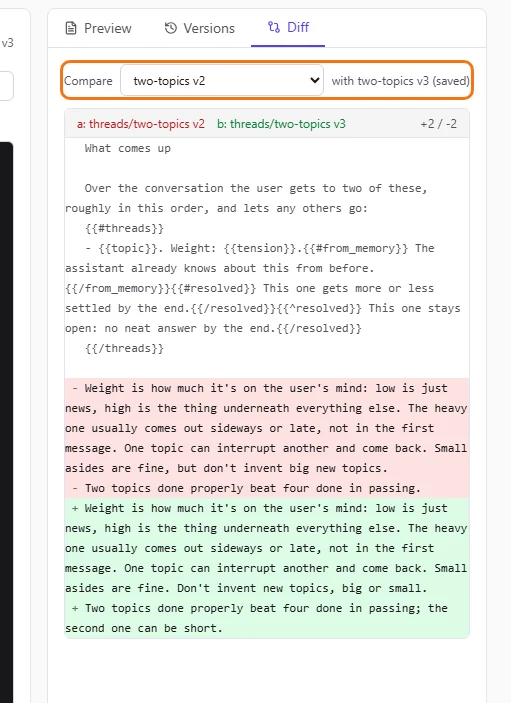
- Step 5.
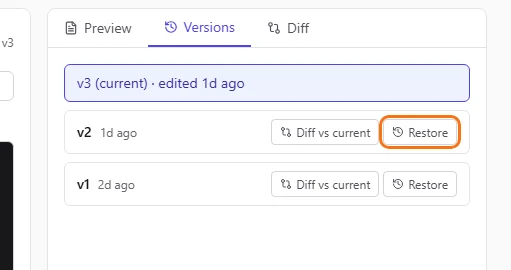
Go back to "Versions" and click "Restore" on the v2 row. The v2 text comes back as a new version on top, v4, and v3 stays in the history, so you can change your mind again later.
Runs that already started keep the text they began with. The next run that uses a prompt set with two-topics gets the restored text.
Write a new occasion from scratch
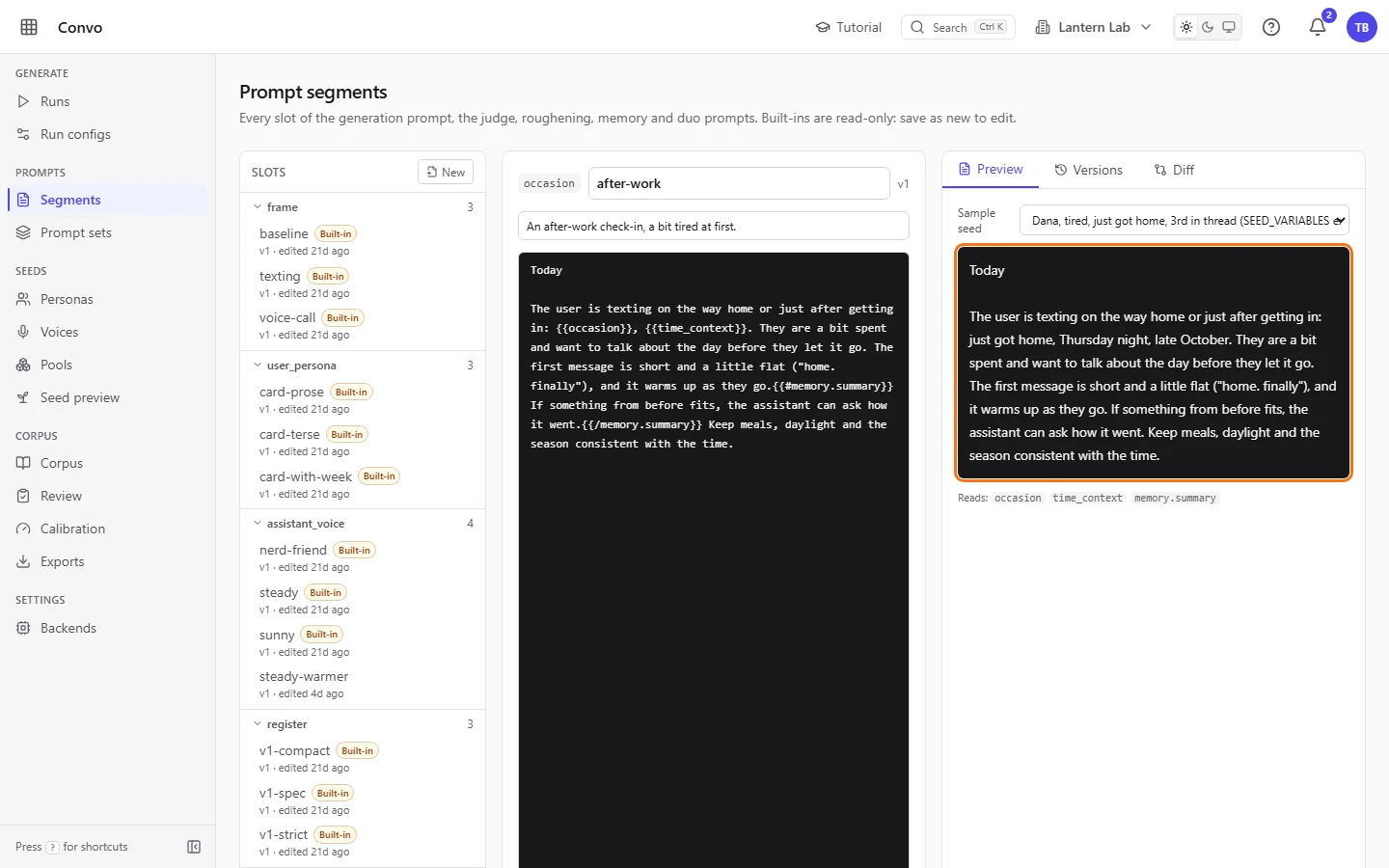
Theo wants an occasion that none of the built-ins cover: the person is messaging on the way home from work. He starts an empty segment and builds it from the seed's variables.
- Step 1.
Open Segments and click "New" at the top of the rail. Pick
occasionin the slot dropdown, typeafter-workas the name, and click "Create". Names must be unique within a slot, so a name already in use there is refused.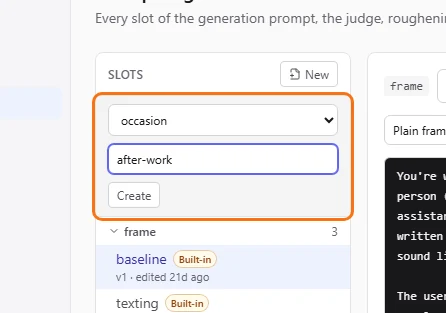
- Step 2.
The empty segment opens in the editor. Type the text, and click
{{occasion}}and{{time_context}}under "Variables (click to insert at the cursor)" to place them at the cursor. A mistake in the braces shows as "Template error:" under the template, and "Save" stays off until it's fixed.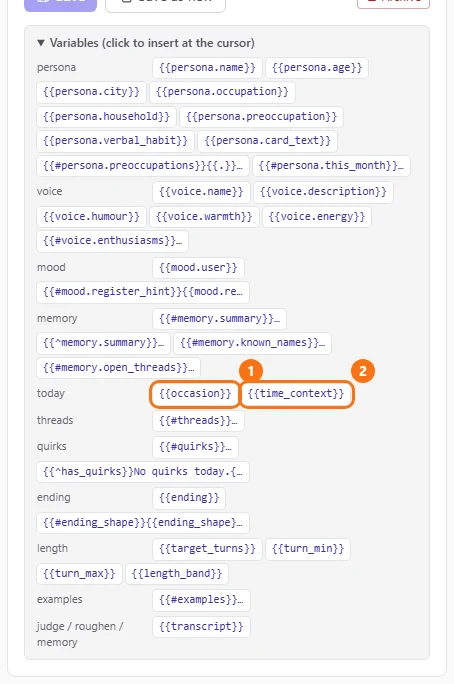
- Step 3.
Click "Preview" and step through a few sample seeds to check the text reads well for each person.
- Step 4.
Click "Save".
The new segment sits in the occasion slot alongside the built-ins. A prompt set uses it once you pick it there, and a set with a random occasion slot includes it in the draw. See Let each conversation pick its own occasion.