Exports
Turn accepted conversations into JSONL training files, and build blind-read packets to check they sound like a real friend.
An export writes conversations to JSONL, one conversation per line, and gives you a download link. A blind-read packet mixes synthetic conversations with real messages, roles hidden, so a second reviewer can score how much the friend sounds like a friend.
Export accepted conversations for training
Nadia is handing a finished run to the training team. Their trainer reads chat-format JSONL and wants only the messages.
- Step 1.
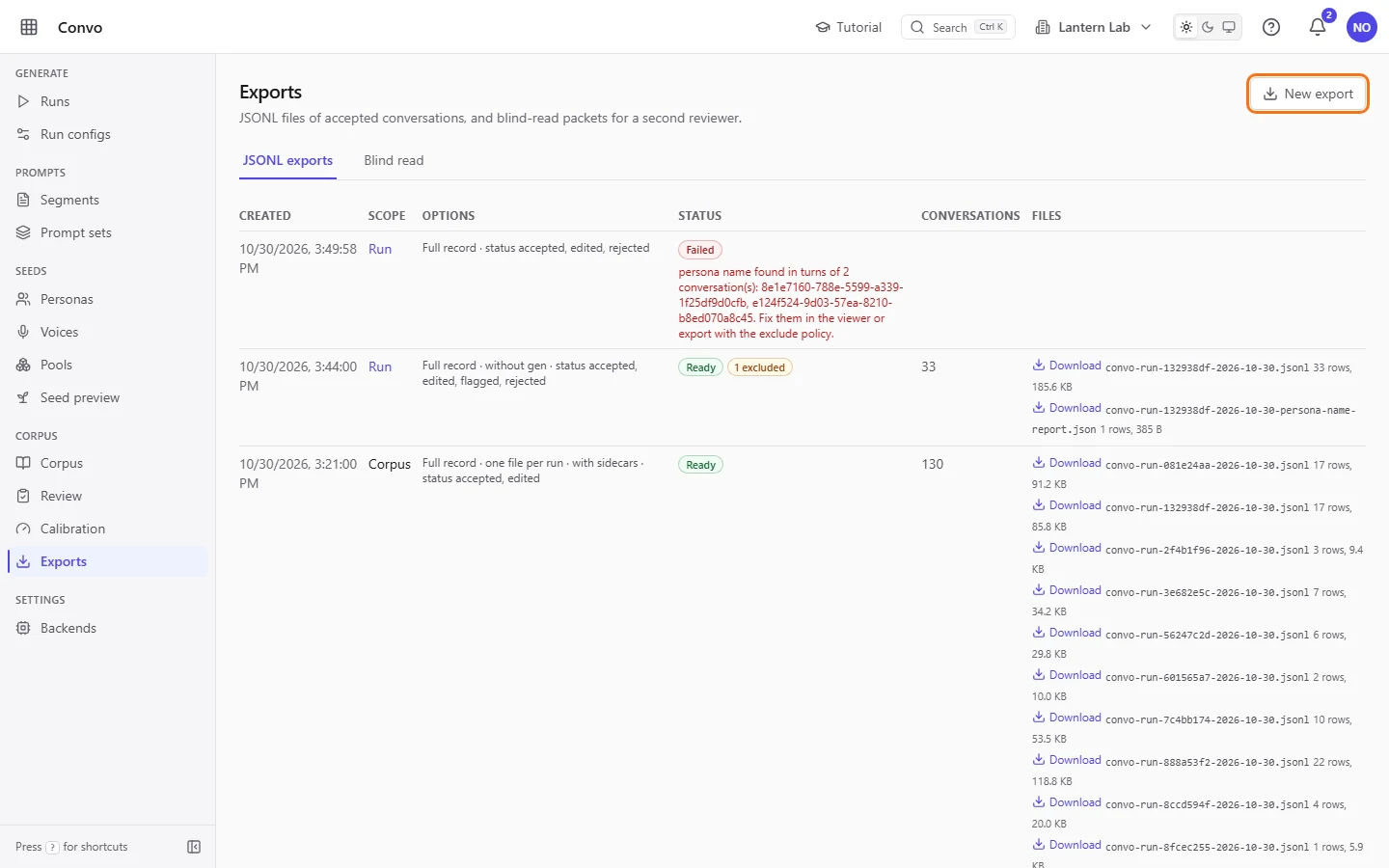
Open Exports from the sidebar and click "New export".
- Step 2.
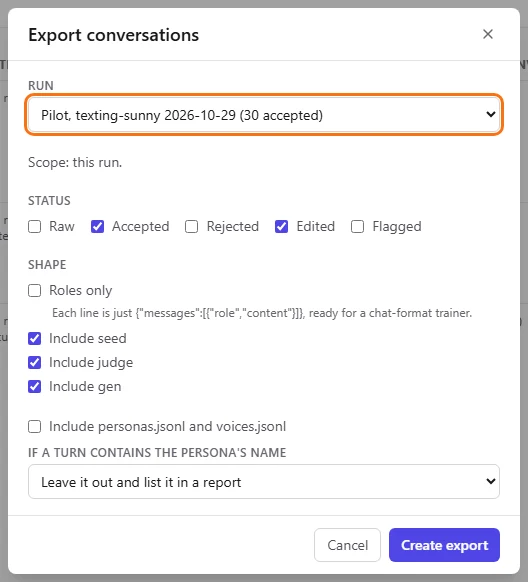
Under "Run", pick the run. "All runs (the corpus)" exports every run at once.
- Step 3.
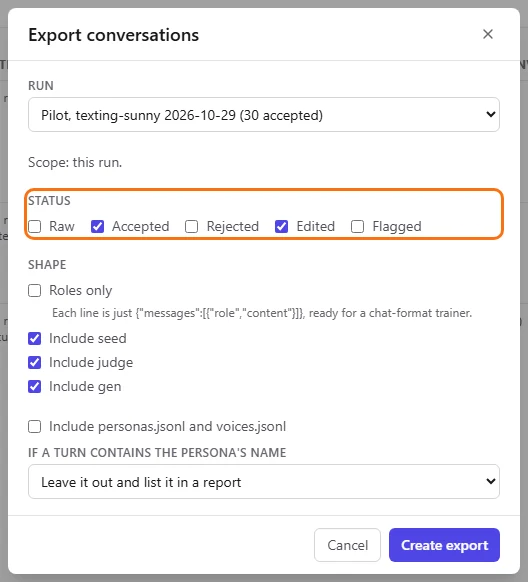
Under "Status", leave "Accepted" and "Edited" ticked. Together they are the accepted corpus.
- Step 4.
Tick "Roles only". Each line becomes just the messages with
userandassistantroles, and "Include seed", "Include judge" and "Include gen" grey out.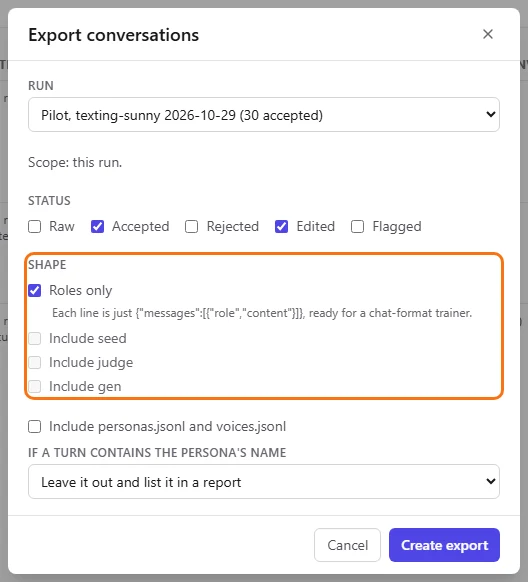
- Step 5.
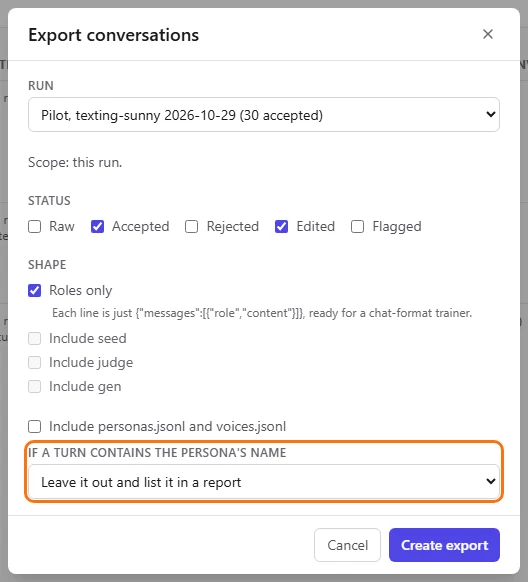
Under "If a turn contains the persona's name", keep "Leave it out and list it in a report". Persona names must never appear in the text; with this choice any conversation that breaks the rule is dropped and listed in a report file. "Refuse the export" fails the whole export instead.
- Step 6.
Click "Create export". The export appears in the list as "Queued", then "Running", then "Ready", and the bell tells you when the file is ready.

The list updates by itself - Step 7.
Click "Download" next to the file. Each link is signed for one hour, and every click fetches a fresh one, so an old page still works.
If the row shows a number excluded, the persona-name guard left those conversations out, and the report file next to the export lists each one. A "Failed" export shows its reason under the status. With "Refuse the export", a turn that contains a persona's name fails the whole export, and the reason lists the conversations; fix them in the viewer, or export again with "Leave it out and list it in a report".
Export the whole corpus with its persona and voice cards
Theo wants a full record of everything accepted so far, split by run, with the cards that produced each conversation, so the analysis team can join them back later.
- Step 1.
In Exports, click "New export" and leave "Run" on "All runs (the corpus)".
- Step 2.
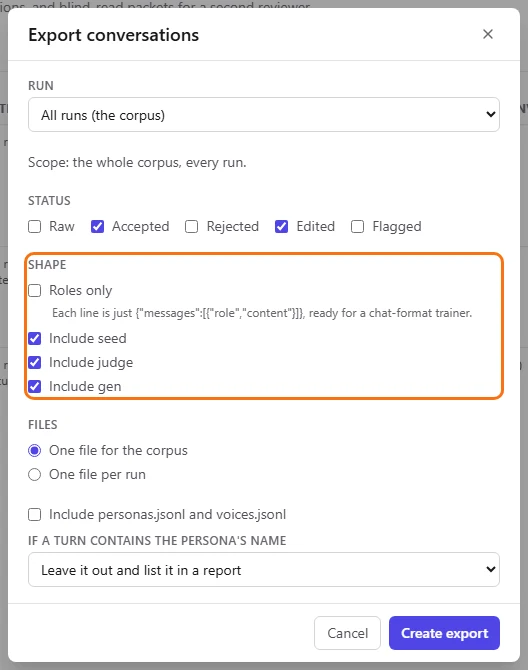
Leave "Roles only" unticked, so each line carries the full record: ids, stats and status, plus the seed, the judge scores and the generation details while "Include seed", "Include judge" and "Include gen" stay ticked.
- Step 3.
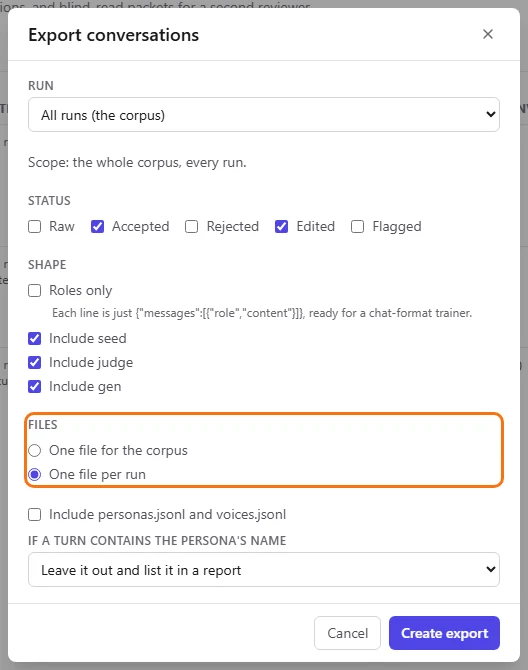
Under "Files", choose "One file per run".
- Step 4.
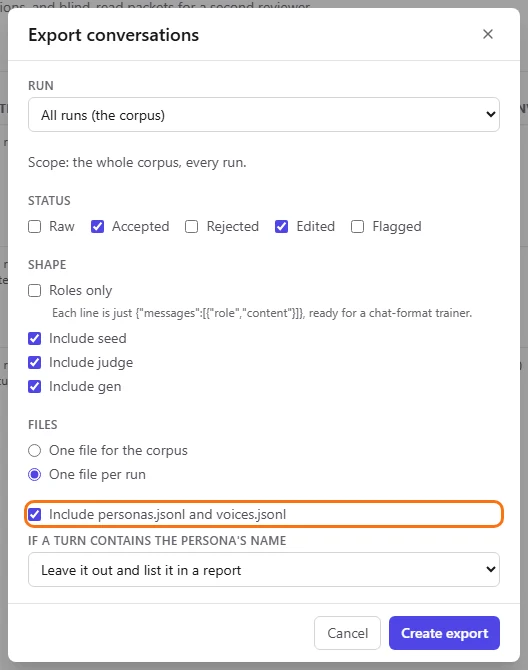
Tick "Include personas.jsonl and voices.jsonl", then click "Create export".
- Step 5.
When it reads "Ready", the row lists every file, each with its row count and size: one
convo-run-<run>-<date>.jsonlper run, plusconvo-corpus-<date>-personas.jsonlandconvo-corpus-<date>-voices.jsonl.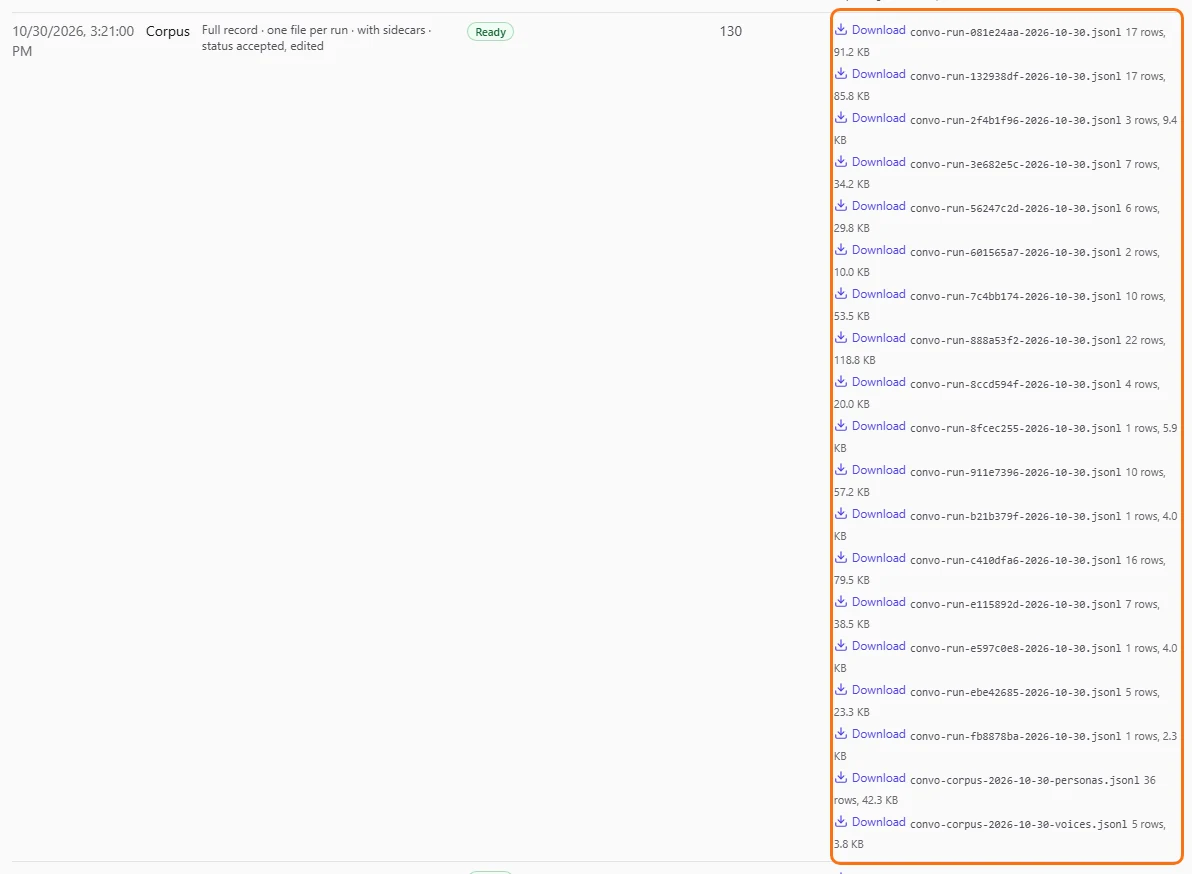
The Corpus page and every run page have their own "Export" button, which opens this dialog for that run, or with the corpus filters already applied. See Corpus.
Compare two prompt sets with a blind read
Nadia has two pilot runs that differ only in their prompt set, Baseline and Call-steady, and wants to know which one sounds more like a warm friend to someone who doesn't know which items are generated. The bar is a mean rating of 4 or more on the synthetic items.
- Step 1.
In Exports, open the "Blind read" tab and click "New blind-read packet".
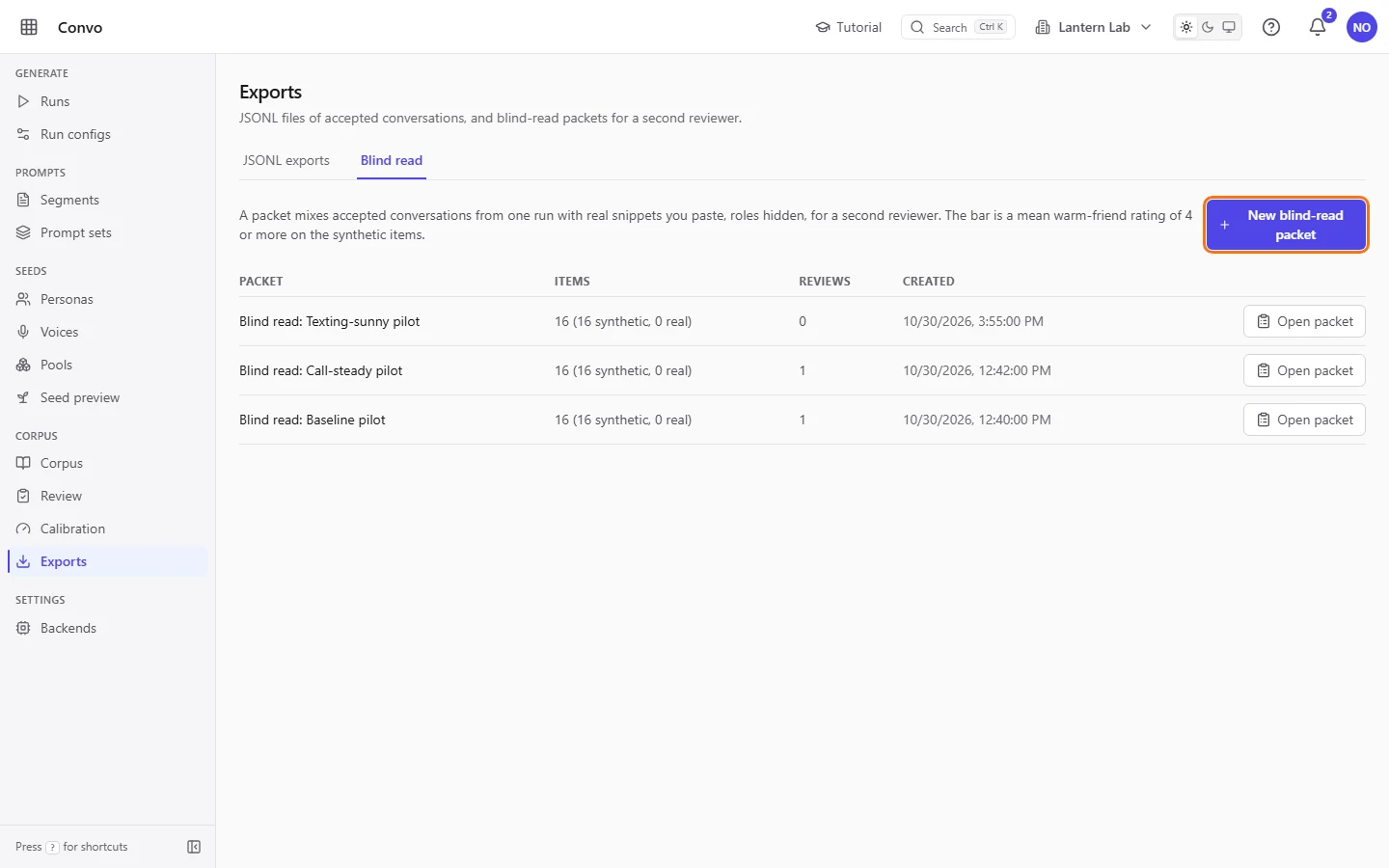
The demo packets were built with no real items, so each one reads 16 synthetic, 0 real - Step 2.
Under "Run", choose the pilot made with the Baseline prompt set, "Pilot, cloud single 2026-10-29" in the screenshots. Its accepted conversations become the synthetic items.
- Step 3.
Paste 10 to 20 snippets (the form takes up to 25) of real messaging between friends into "Real snippets": one message per line, with a line of three dashes (
---) between snippets. Start a line withA:orB:to set the speaker. B is the friend who replies. The packets in these screenshots were built with no real snippets, which is why their Results show "Real warmth" as n/a.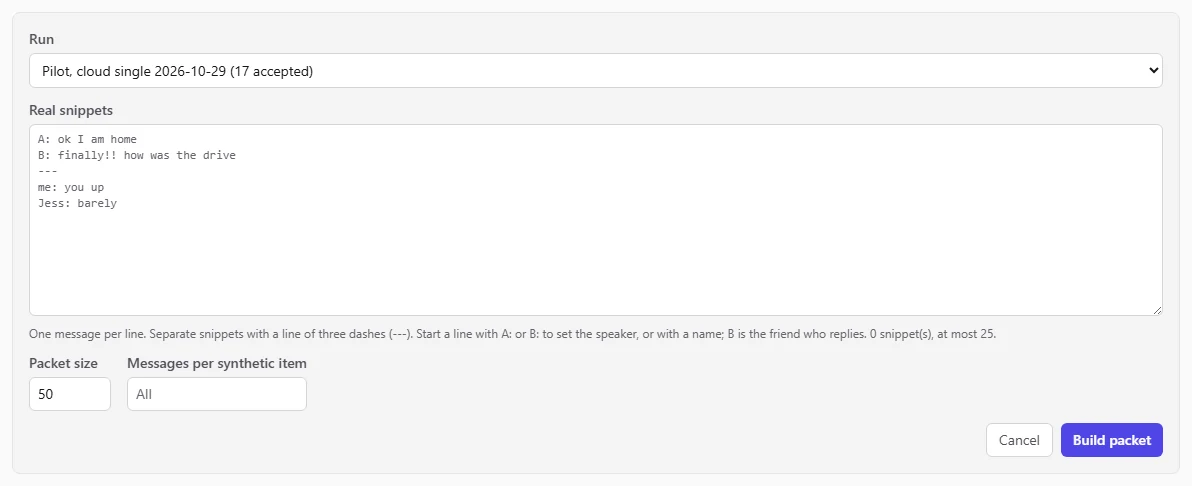
- Step 4.
Leave "Packet size" at 50, and set "Messages per synthetic item" to about the length of your snippets, so length doesn't give the synthetic items away. Click "Build packet". The packet opens.
- Step 5.
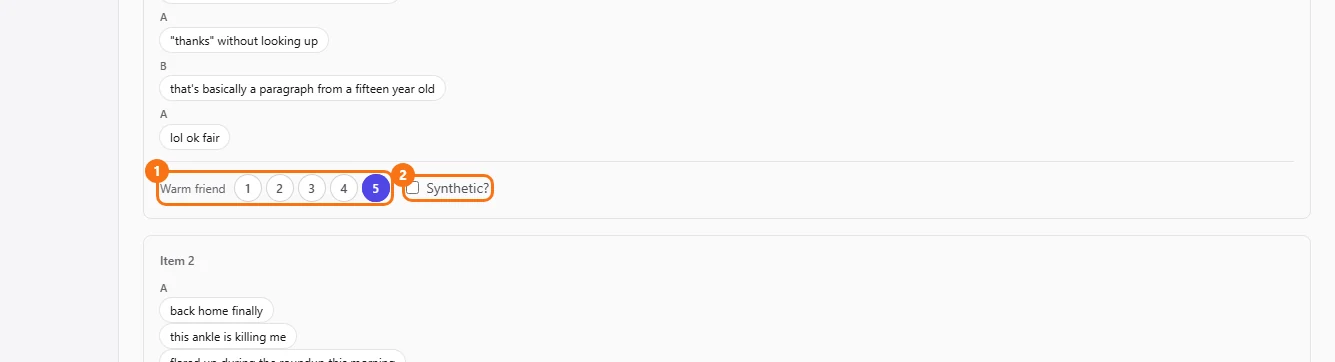
Copy the page address and send it to the second reviewer, Ines. She reads each item, rates how much B sounds like a warm friend under "Warm friend" from 1 to 5, and ticks "Synthetic?" where she thinks it was generated.
- Step 6.
When every item is rated, Ines adds any "Notes for the decision memo" and clicks "Submit review". She can change her answers later with "Update review".
- Step 7.
Scroll to "Results" at the bottom of the packet. It shows the synthetic warmth mean and whether it meets the bar, and for each reviewer the "Synthetic warmth", "Real warmth", "Spotted synthetic" and "Accuracy". Click "Answer key" to expand it: it shows which items were synthetic and which were real, with a link to each synthetic conversation.

The demo packets were built with no real items, so Real warmth reads n/a - Step 8.
Build a second packet from the other run with the same snippets, and have Ines score it too.

The demo packets were built with no real items, so each one reads 16 synthetic, 0 real
Nadia now has a stored warmth score for each prompt set, measured the same way, for the decision memo. Results open for a reviewer once they submit, and straight away for the person who built the packet.