Tutorials
Every tab can walk you through itself. Press Tutorial in the top bar for a guided tour of the page you're on.
You don't need these docs open to learn a page. The "Tutorial" button in the top bar starts a guided tour of the tab you're on. It spotlights one part of the page at a time and explains it in a small card. The tour only points and explains. You do every click yourself, so you learn the page by using it, and nothing happens that you didn't do.
Generate
- RunsTour
- Run configsTour
Prompts
- SegmentsTour
- Prompt setsTour
Seeds
- PersonasTour
- VoicesTour
- PoolsTour
- Seed previewTour
Corpus
- CorpusTour
- ReviewTour
- CalibrationTour
- ExportsTour
Settings
- BackendsTour
From the app's code, as of 2026-10-30.
Take a tour of a page you've never used
Theo has never opened Seed preview. Before he plans a run, he wants to know what each control does.
- Step 1.
Open Seed preview and look at the top bar. The "Tutorial" button is lit when the page has a tour. Hover it to see which one, here "Tutorial: Seed preview".

- Step 2.
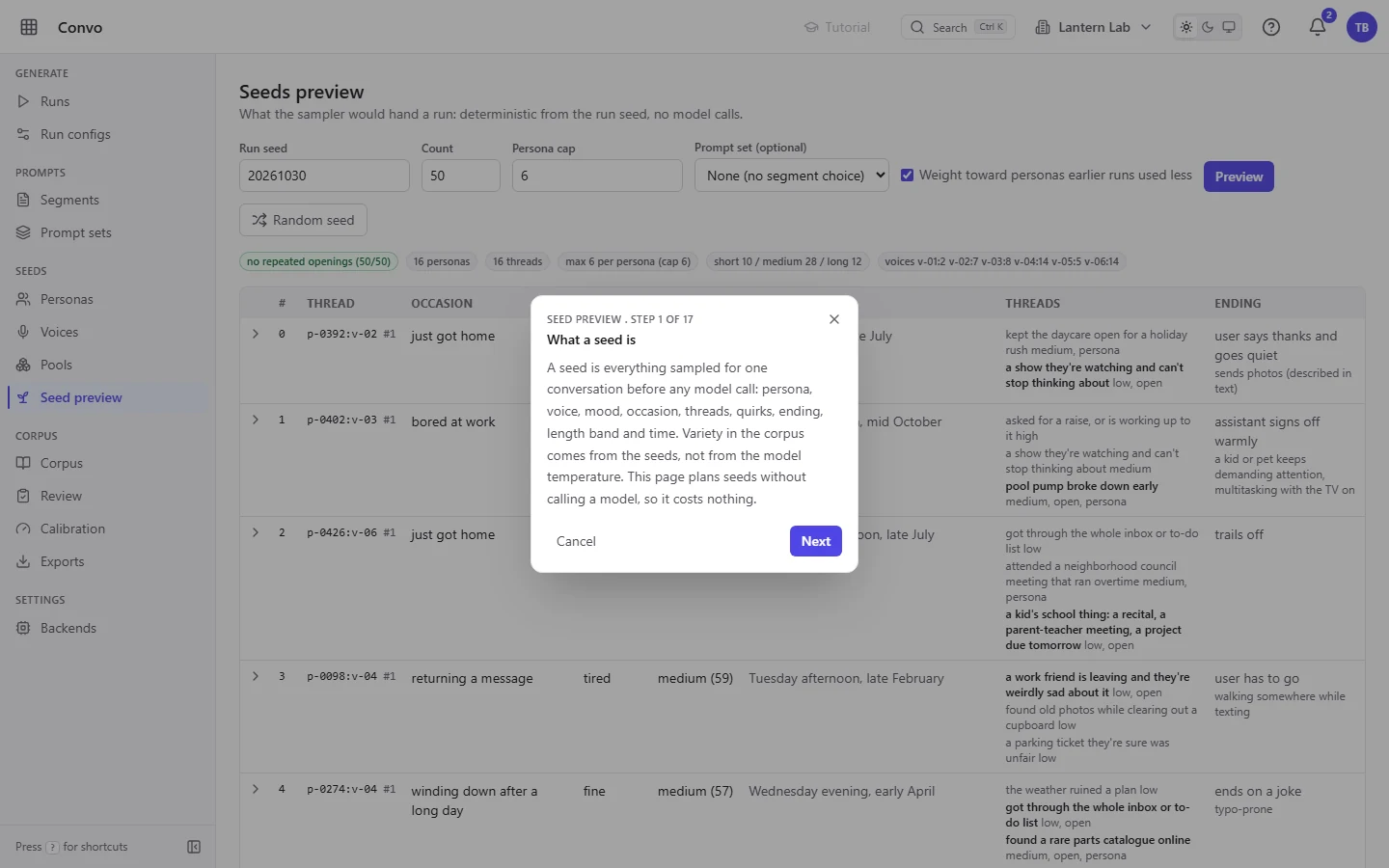
Click "Tutorial". The page dims and the first card opens. The line at the top of the card names the tour and counts the steps, here "Seed preview . Step 1 of 17". A step that's about the whole page has its card in the middle.
- Step 3.
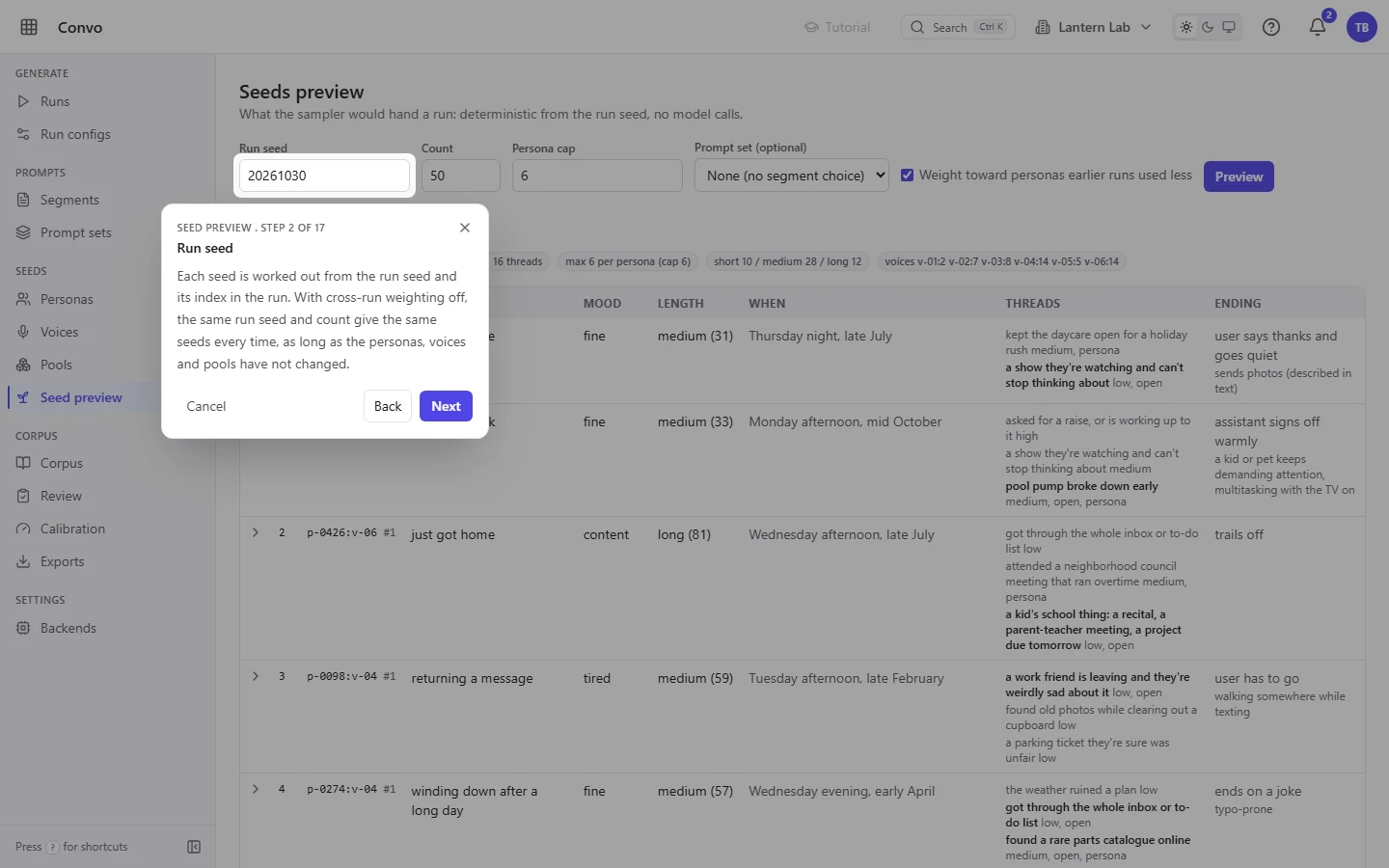
Click "Next". The tour moves to "Run seed": a ring spotlights the field and the card sits beside it. Only the spotlighted part and the card respond to clicks, so you can't wander off by accident. "Back" now appears too, and takes you to the step before.
- Step 4.
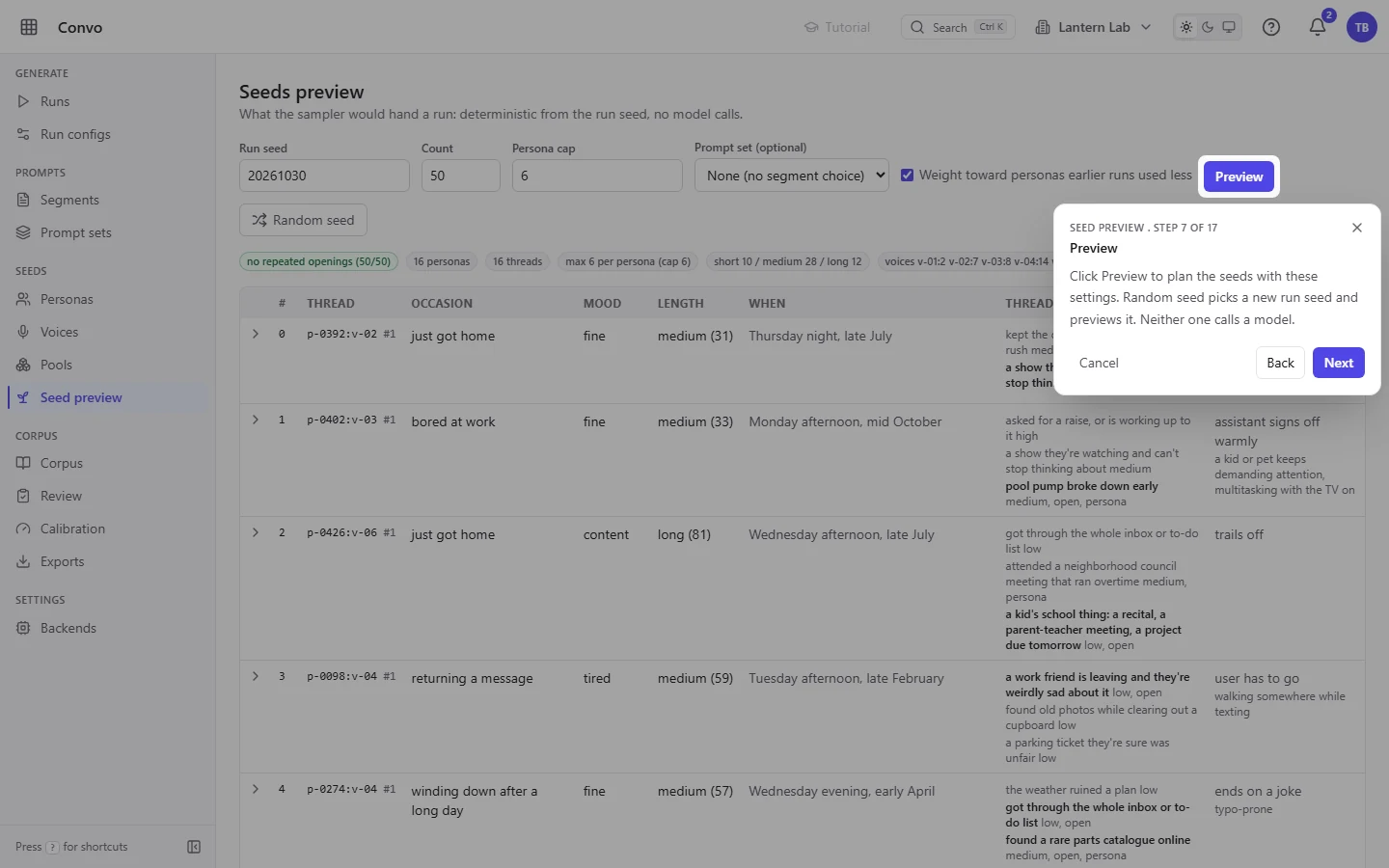
Keep clicking "Next" until the tour reaches "Preview". This card asks you to click "Preview" on the page yourself. The tour never clicks for you. Click it and the tour moves on when the results arrive. "Next" is there too if you'd rather just read on. Seed preview never calls a model, so trying things here costs nothing.
- Step 5.
Follow the cards to the end. The last card has "Done" instead of "Next". Click it to close the tour.
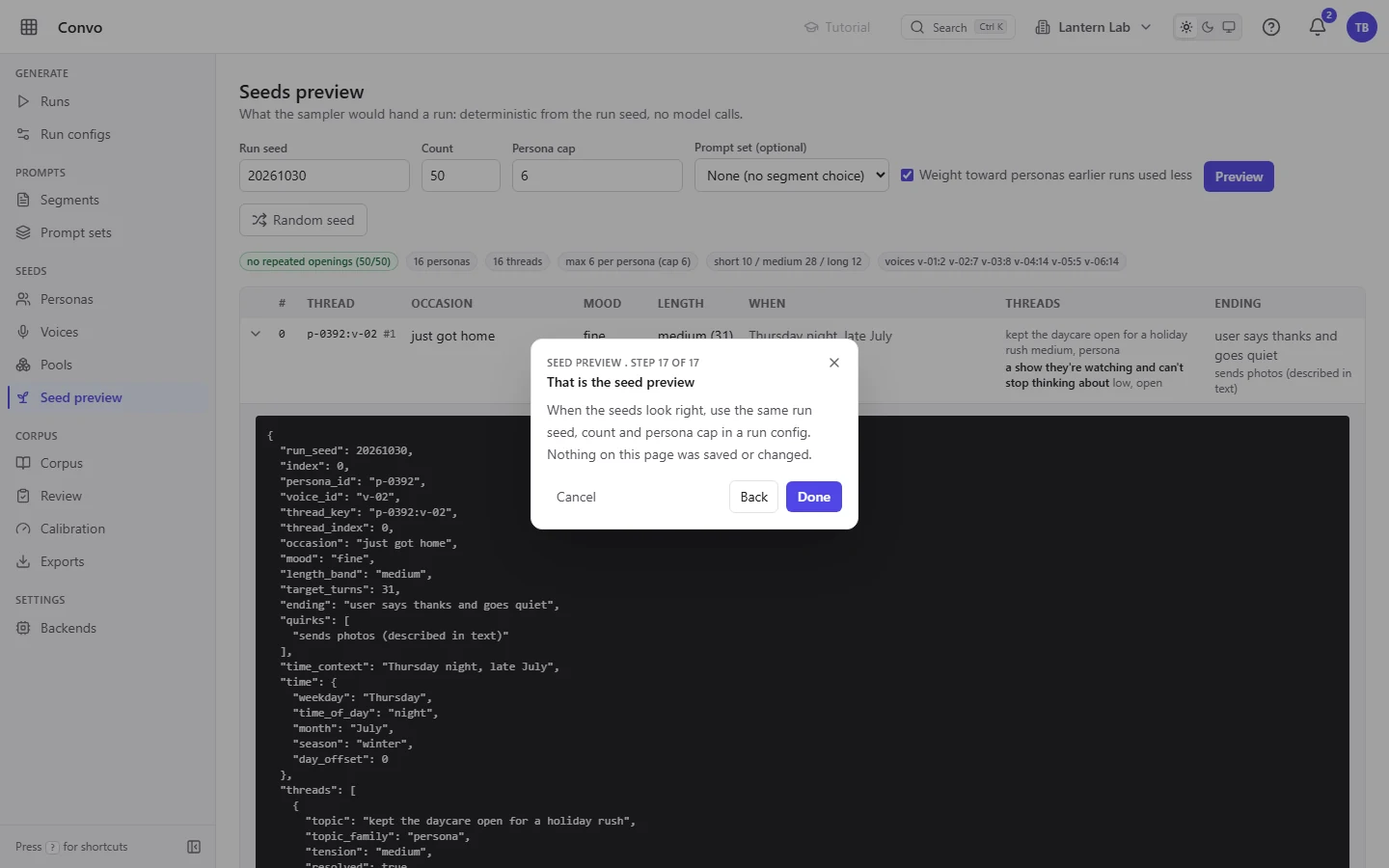
Every tab with a tour works the same way, so once you've done one, you know them all.
Choose your path
Ines has two jobs on Exports today: a training file now, and a blind read later. She wants the tour to show her the first job without walking through the second.
- Step 1.
Open Exports and click "Tutorial". The first card asks which job you want to do, with a button for each: "Export training data" and "Set up a blind read". Some tours start with a choice like this, so you only see the steps for your job.
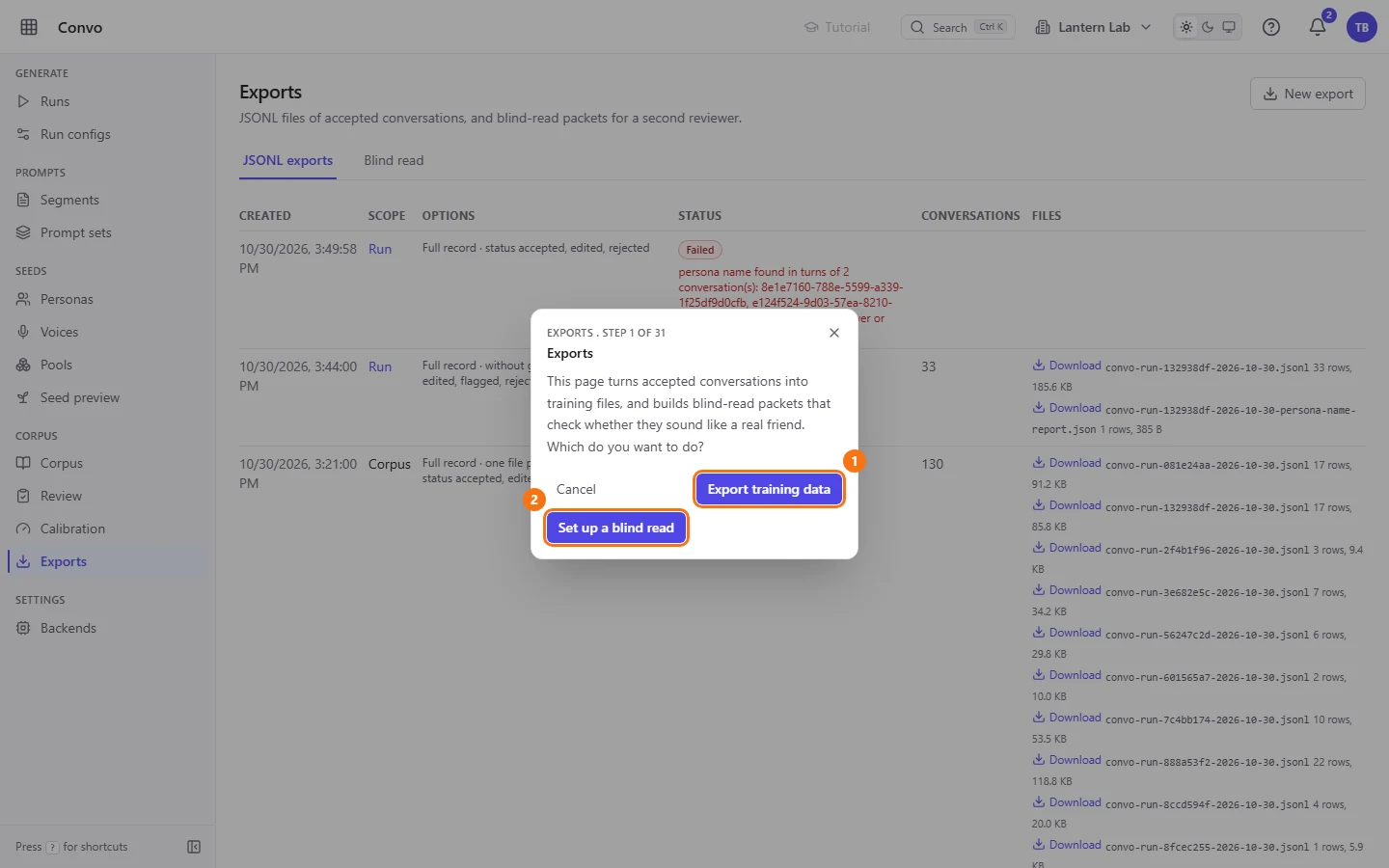
- Step 2.
Click "Export training data". The tour follows that path. (Had she picked "Set up a blind read", the step number would have jumped ahead to where that path starts.) The card spotlights "New export" and says "This moves on by itself when you do it." There's no "Next" here, because the tour is waiting for you.
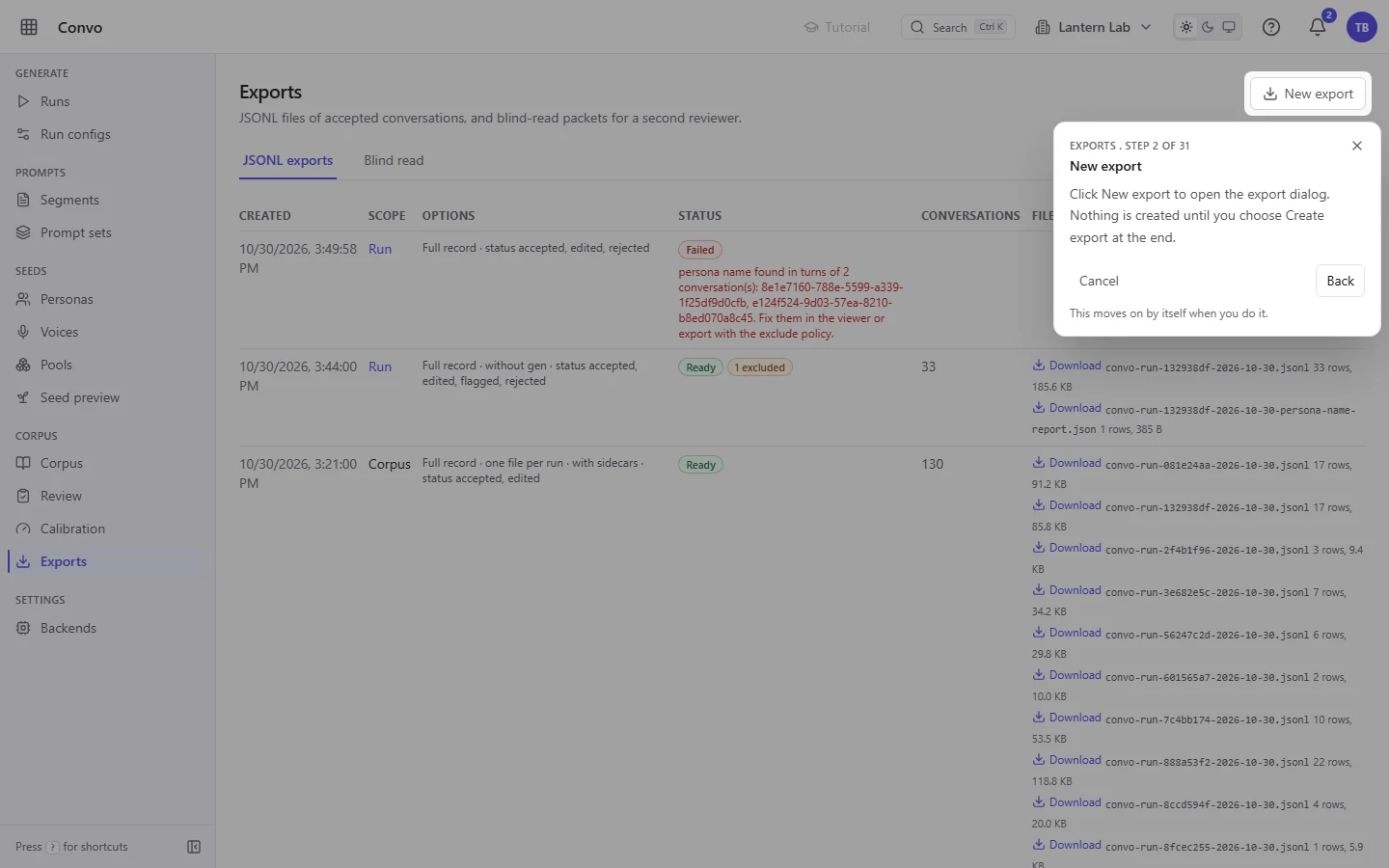
- Step 3.
Click "New export". The export dialog opens and the tour carries on inside it, field by field. Opening the dialog creates nothing. Only "Create export" at the end does that, and the tour tells you so before you get there.
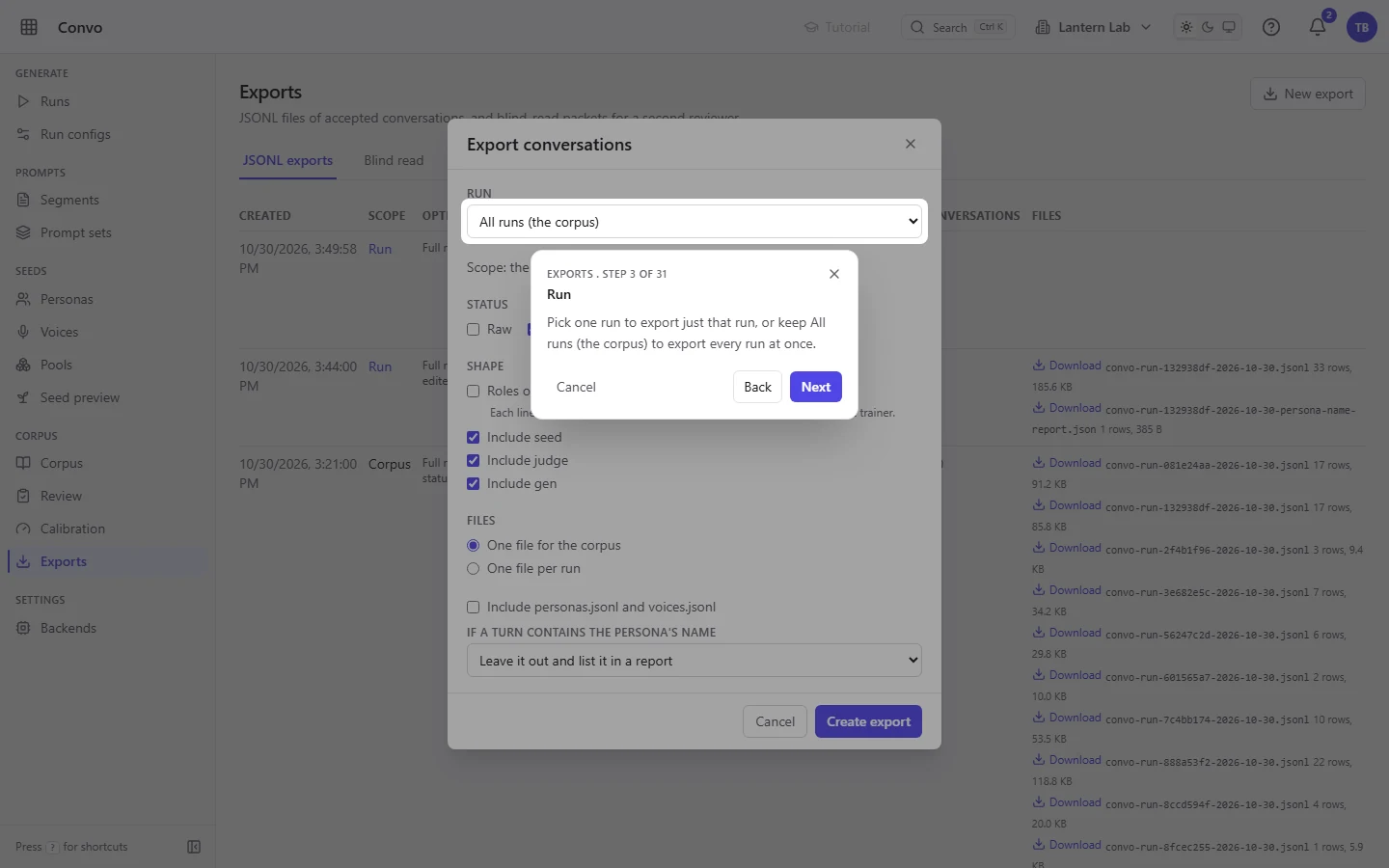
- Step 4.
Later, Ines opens Run configs and starts its tour. This one branches differently: the first card spotlights "New run config" and says to click it to start a new config, or press "Next" to open an existing one instead. Either way, the tour then walks her through every field on the form.
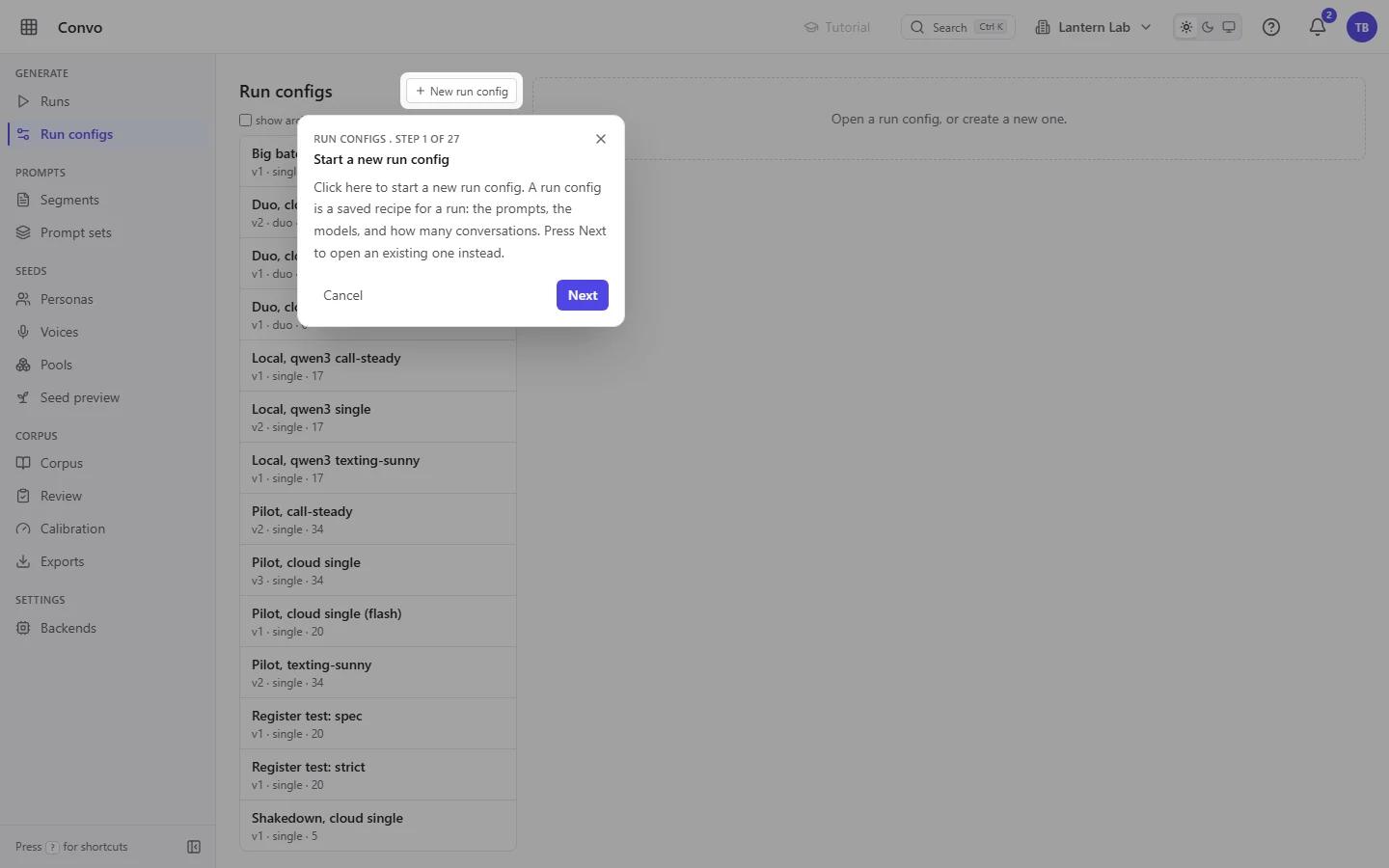
If a step points at something that isn't on the page, such as a list that's still loading, the card says "Can't find this on the page" and offers "Skip" and "Cancel".
Stop any time
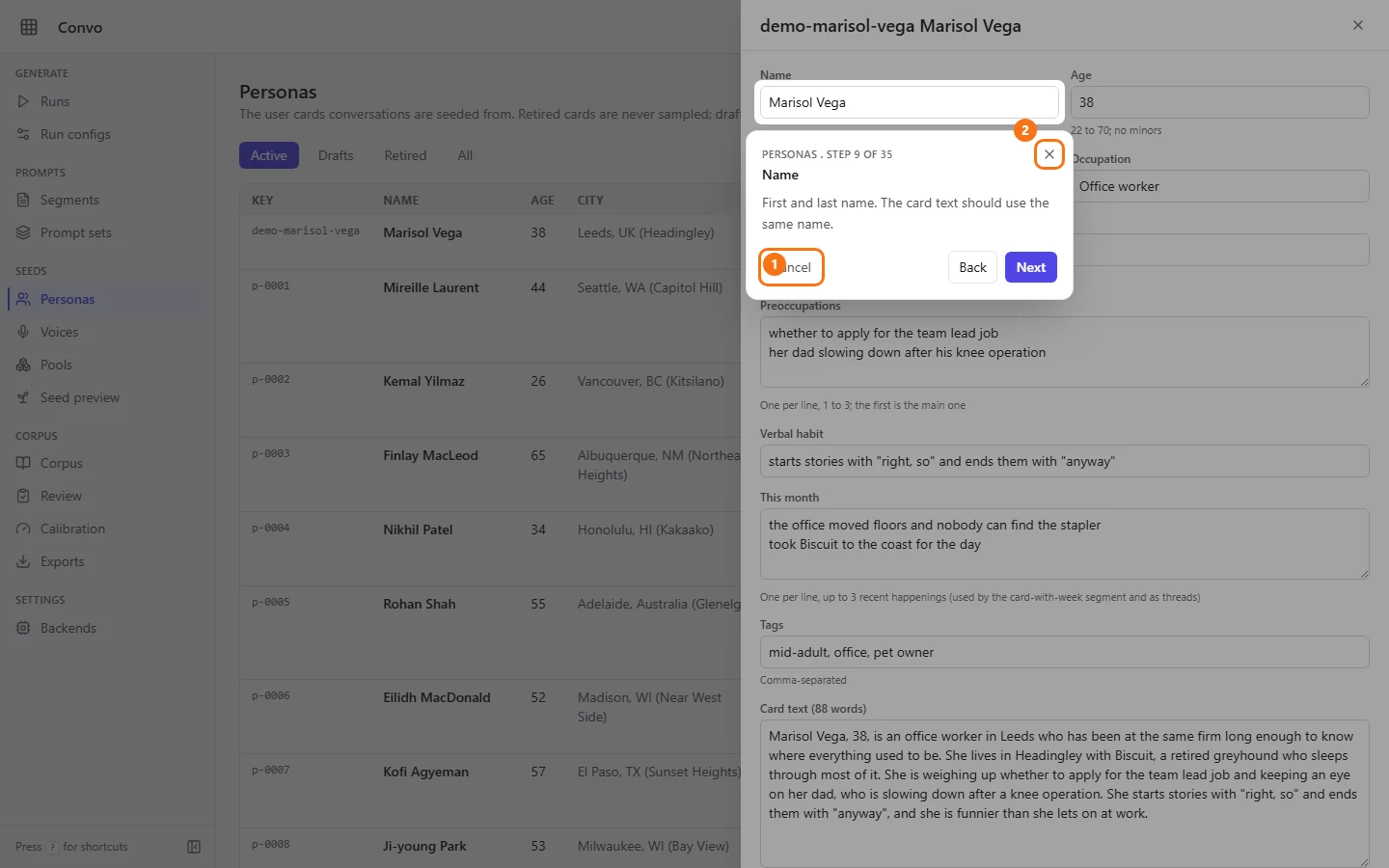
Theo is halfway through the Personas tour, with a persona open in the editor, when he realises he only wanted to see how to edit a name.
- Step 1.
Click "Cancel" on the card, or the X in its corner. Both end the tour, from any step.
- Step 2.
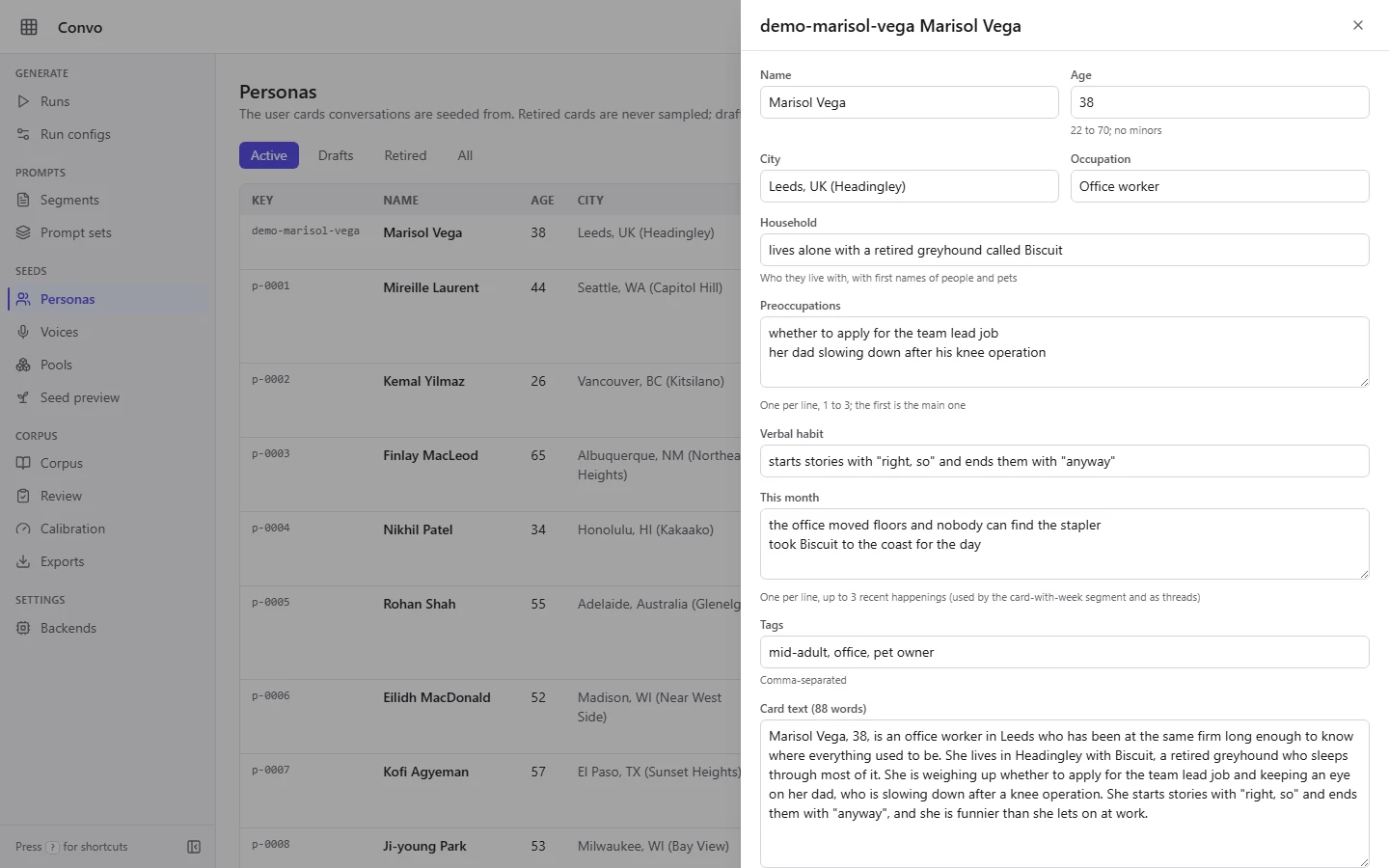
Or press Esc. Esc ends only the tour. The persona editor stays open, and nothing you did during the tour is undone. Focus goes back to the "Tutorial" button, so you can start again from the keyboard.
- Step 3.
Moving to another tab also ends the tour. While a tour runs, the "Tutorial" button is dimmed and does nothing, so you can't start a second one by mistake.
- Step 4.
Tours belong to the tabs in the sidebar (the list at the top of this page shows which). A page you reach from a tab may have none of its own, such as a single conversation opened from Corpus. On a page without a tour the button is dimmed and can't be clicked, and hovering it says "No tutorial for this page".

A page without a tour, such as a conversation. Hover the dimmed button to see No tutorial for this page.
Tours are always one click away. Start one whenever a page is new to you, and stop it as soon as you've seen enough.